




TrueNAS Development Documentation
This content follows experimental development changes in TrueNAS 28, a future version of TrueNAS.
Use the Product and Version selectors above to view content specific to a stable software release.
Alert Settings Screens
12 minute read.
The Alert Settings screen displays options to create and edit alert services and to configure warning levels and frequencies. To access this screen, click the icon, then click the icon and select Alert Settings on the dropdown list.
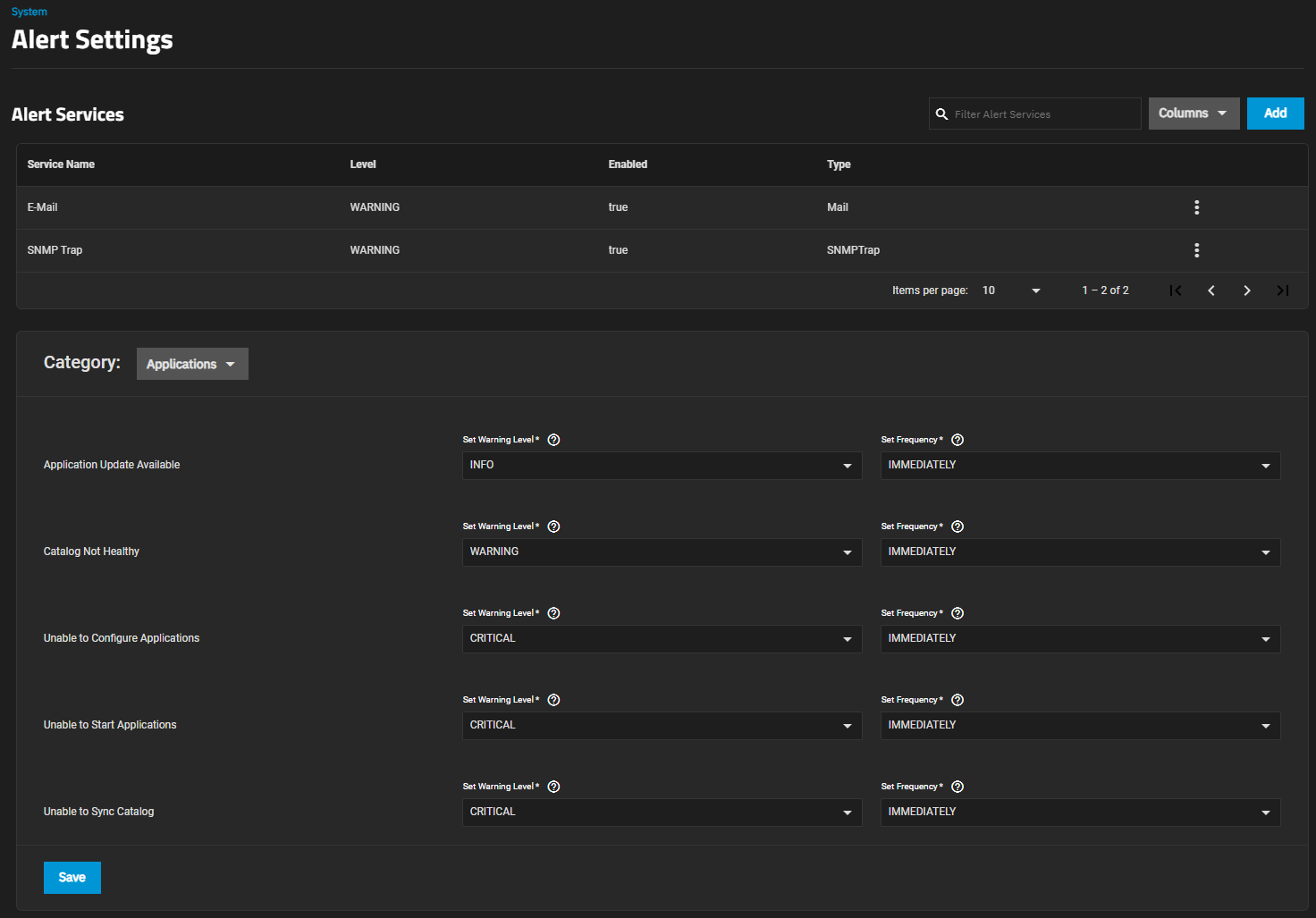
Use Columns to change the information displayed in the list of alert services. Options are Unselect All, Type, Level, Enabled and Reset to Defaults.
The Add Alert Service and Edit Alert Service screens show the same settings.
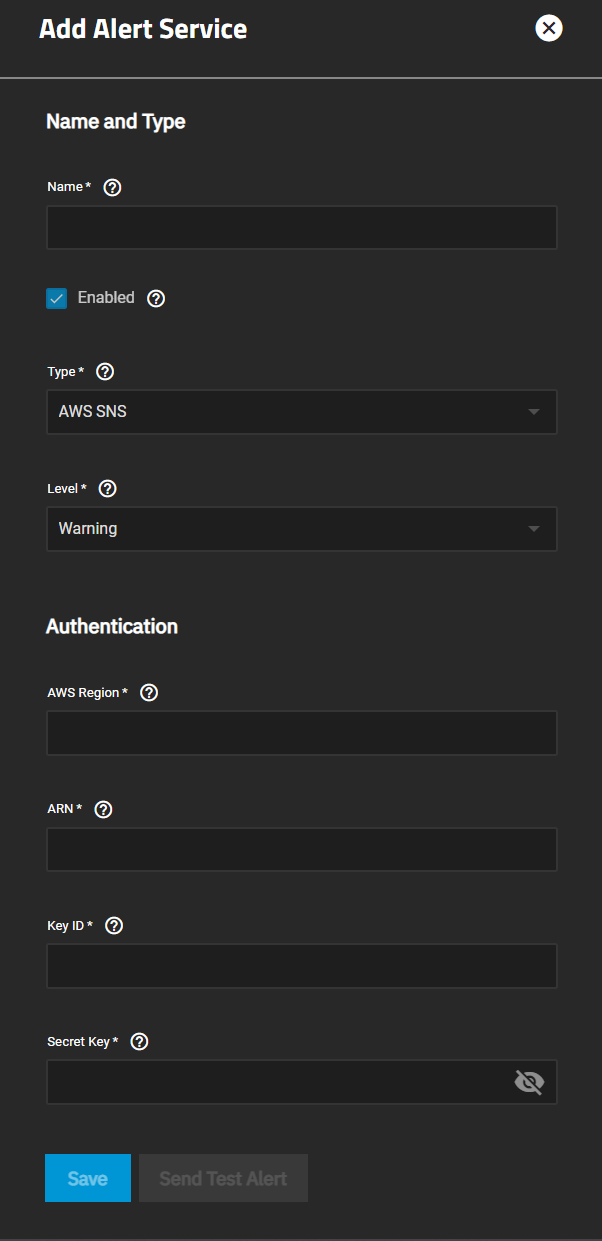
Use Add to create a new alert service using the Add Alert Service screen. The Type settings for AWS SNS display by default. To add an alert service for another option, use the Type dropdown list. Only the Authentication Settings change for each option.
| Setting | Description |
|---|---|
| Name | Enter a name for the new alert service. |
| Enabled | Clear the checkmark to disable this service without deleting it. |
| Type | Select an option from the dropdown list for an alert service to display options for that service. Options are AWS SNS which is the default type displayed, E-Mail, InfluxDB, Mattermost, OpsGenie, PagerDuty, Slack, SNMP Trap, Telegram or Splunk On-Call. |
| Level | Select the severity from the dropdown list. Options are Info, Notice, Warning, Error, Critical, Alert or Emergency. TrueNAS sends alert notifications for all warnings matching and above the selected level. For example, a warning level set to Critical triggers notifications for Critical, Alert, and Emergency level warnings. |
Use SEND TEST ALERT to generate a test alert to confirm the alert service works.
Click Cancel to exit the Alert Services screen without saving.
Use Save to add the new service with the settings you specify to the list of alert services.
Use the Edit Alert Service screen to modify settings for a service. Select the icon for the service to display the Edit Alert Service screen.
Click here for more information
Select AWS SNS from the Type dropdown list to display AWS SNS authentication settings.
Settings
| Setting | Description |
|---|---|
| AWS Region | Enter the AWS account region. |
| ARN | Topic Amazon Resource Name (ARN) for publishing. For example, arn:aws:sns:us-west-2:111122223333:MyTopic. |
| Key ID | Enter the access key ID for the linked AWS account. |
| Secret Key | Secret access key for the linked AWS account. |
Click here for more information
Select E-Mail from the Type dropdown list to display email authentication settings.
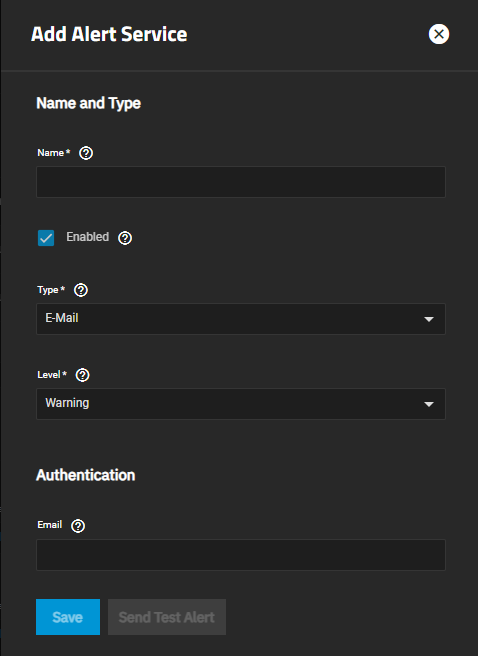
Settings
| Setting | Description |
|---|---|
| Override Admin Email | Sets an email address to override the default email address for the admin account. When left blank, the email address for the admin account is used. |
Click here for more information
Select InfluxDB from the Type dropdown list to display InfluxDB authentication settings.
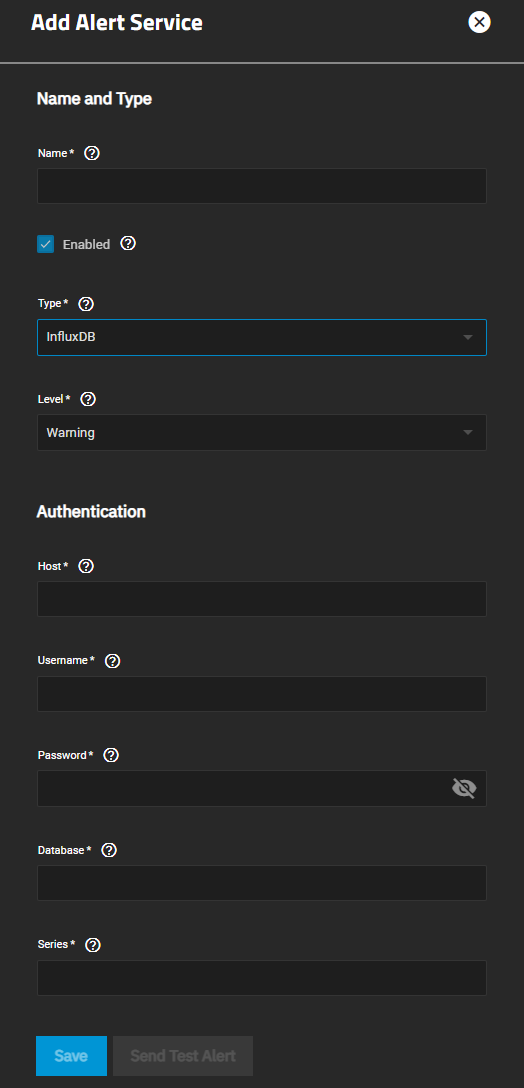
Settings
| Setting | Description |
|---|---|
| Host | Enter the InfluxDB host name. |
| Username | Enter the user name for this service. |
| Password | Enter the password for the user on this service |
| Database | Enter the name of the InfluxDB database. |
| Series | Enter the InfluxDB time series name for collected points. |
Click here for more information
Select Mattermost from the Type dropdown list to display Mattermost authentication settings.
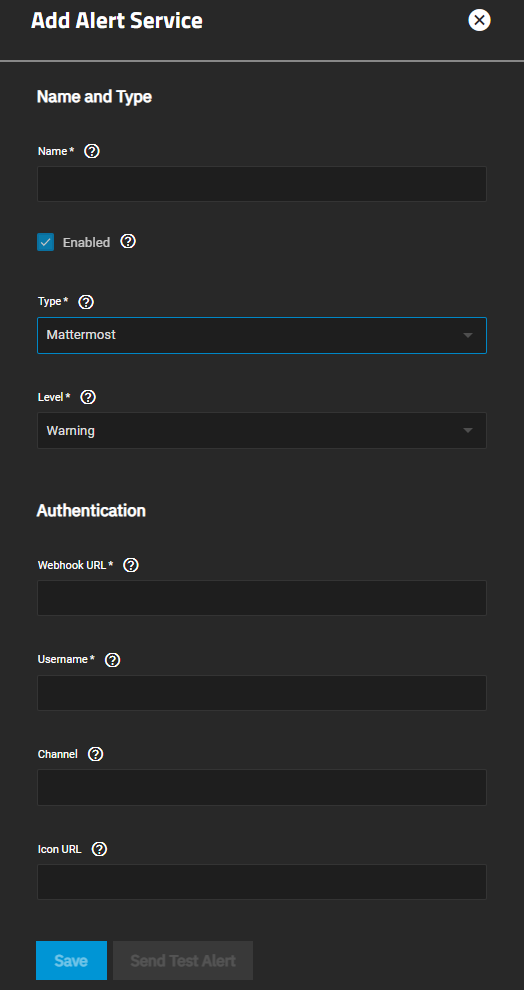
Settings
| Setting | Description |
|---|---|
| Webhook URL | Enter or past the incoming webhook URL associated with this service. |
| Username | Enter the Mattermost user name. |
| Channel | Enter the name of the channel to receive notifications. Entering a channel overrides the default channel in the incoming webhook settings. |
| Icon URL | Enter the icon file to use as the profile picture for new messages. For example, https://mattermost.org/wp-content/uploads/2016/04/icon.png. Requires configuring Mattermost to override profile picture icons. |
Click here for more information
Select OpsGenie from the Type dropdown list to display OpsGenie authentication settings.

Settings
| Setting | Description |
|---|---|
| API Key | Enter the API key. Find the API key by signing into the OpsGenie web interface and going to Integrations/Configured Integrations. Click the desired integration, Settings, and read the API Key field. |
| API URL | Leave empty for default (OpsGenie API). |
Click here for more information
Select PagerDuty from the Type dropdown list to display PagerDuty authentication settings.
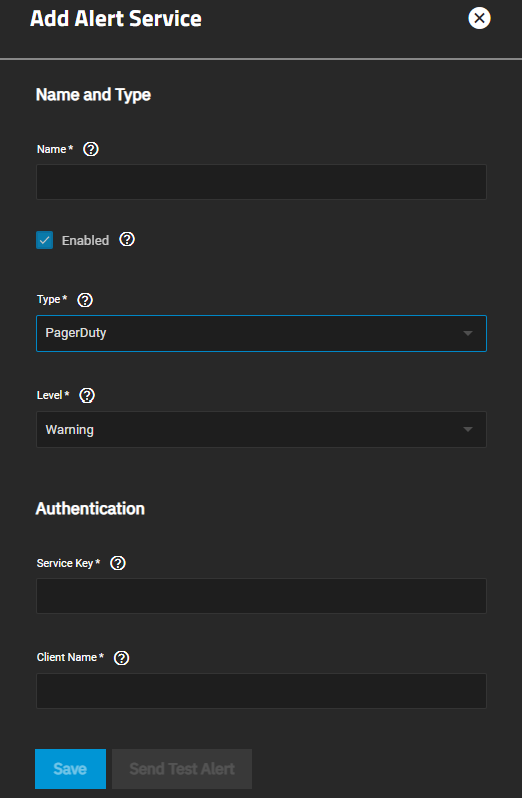
Settings
| Setting | Description |
|---|---|
| Service Key | Enter or paste the integration/service key for this system to access the PagerDuty API. |
| Client Name | Enter the PagerDuty client name. |
Click here for more information
Select Slack from the Type dropdown list to display Slack authentication settings.
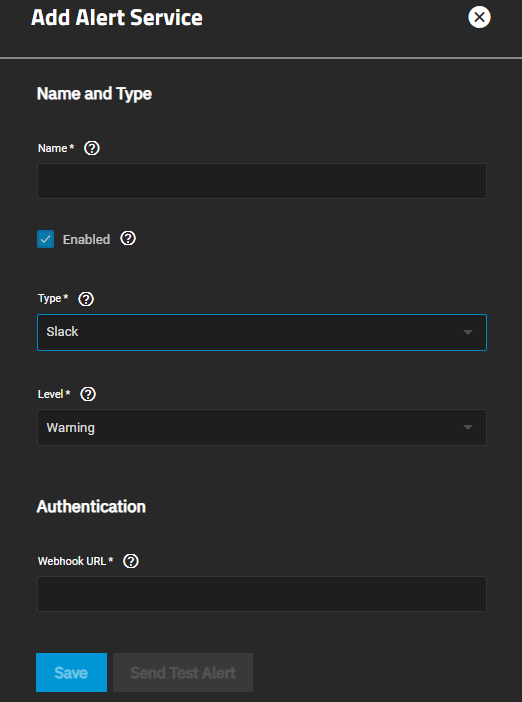
Settings
| Setting | Description |
|---|---|
| Webhook URL | Paste the incoming webhook URL associated with this service. |
Click here for more information
Select SNMP Trap from the Type dropdown list to display SNMP trap authentication settings.
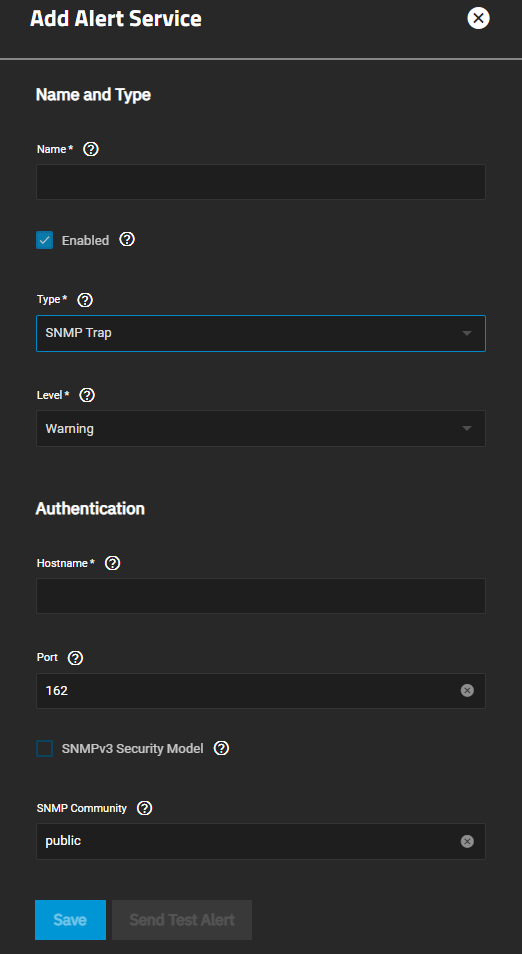
Settings
| Setting | Description |
|---|---|
| Hostname | Enter the hostname or IP address of the system to receive SNMP trap notifications. |
| Port | Enter the UDP port number on the system receiving SNMP trap notifications. The default is 162. |
| SNMPv3 Security Model | Select to enable the SNMPv3 security model. |
| SNMP Community | Enter the network community string. The community string acts like a user ID or password. A user with the correct community string can access network information. The default is public. For more information, see What is an SNMP Community String?. |
Click here for more information
Select Telegram from the Type dropdown list to display Telegram authentication settings.
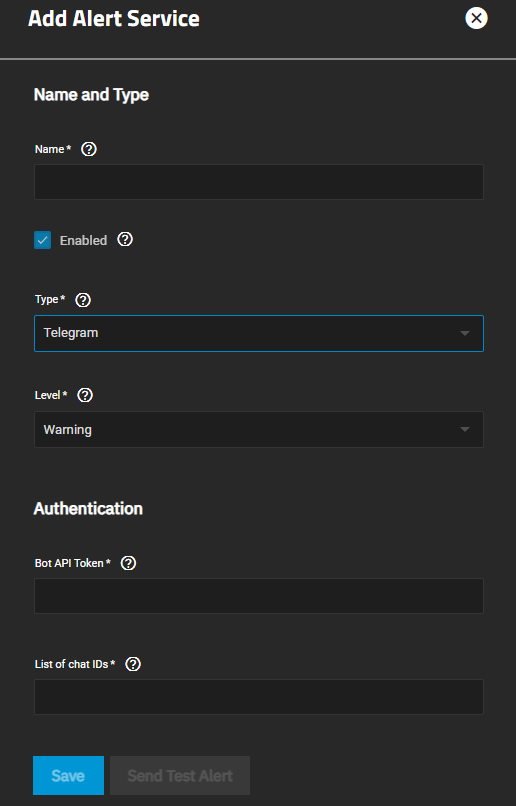
Settings
| Setting | Description |
|---|---|
| Bot API Token | Enter the Telegram Bot API Token How to create a Telegram Bot. |
| List of chat IDs | Enter a list of chat IDs separated by a space ( ), comma (,), or semicolon (;). To find your chat ID, send a message to the bot, group, or channel and visit https://core.telegram.org/bots/api#getting-updates. |
Click here for more information
Select Splunk On-Call from the Type dropdown list to display Splunk On-Call authentication settings.
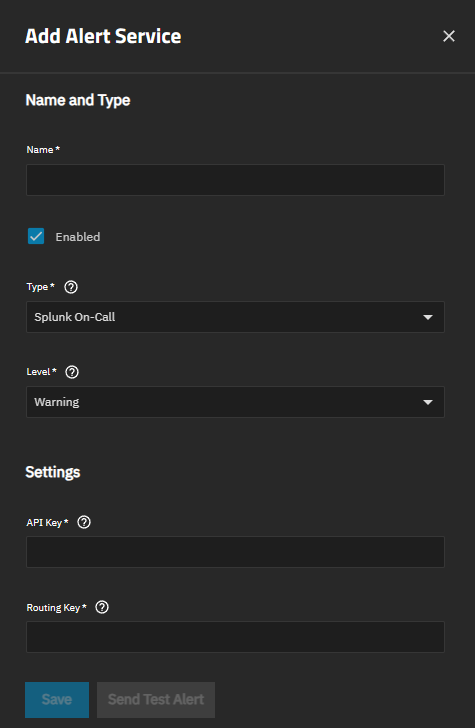
Settings
| Setting | Description |
|---|---|
| API Key | Enter or paste the Splunk On-Call API key. |
| Routing Key | Enter or past the Splunk On-Call routing key. |
Use the Category dropdown list to display alert settings for each category.
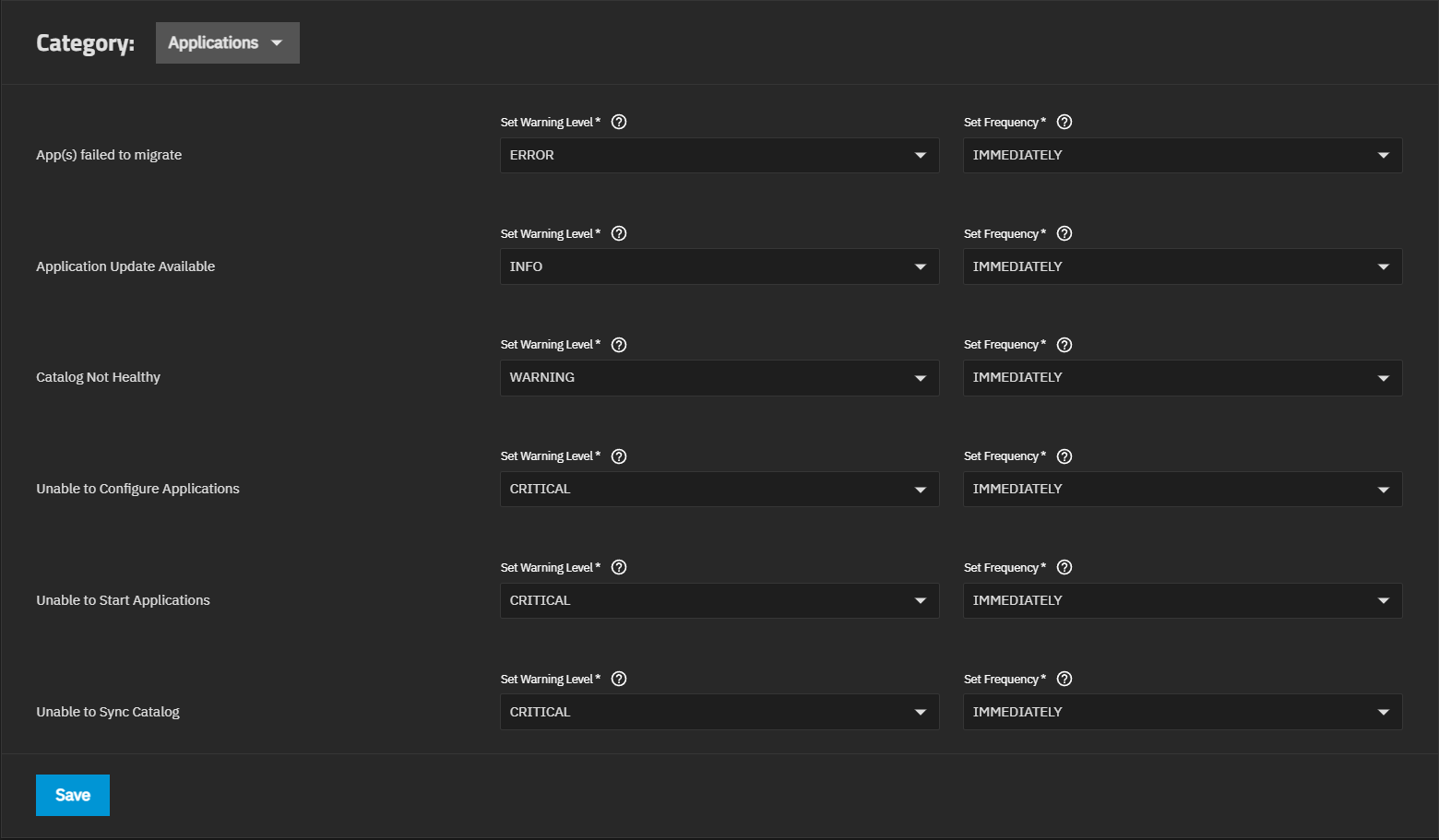
Applications alert settings display by default. These alerts apply to the third-party applications you deploy on your TrueNAS system.
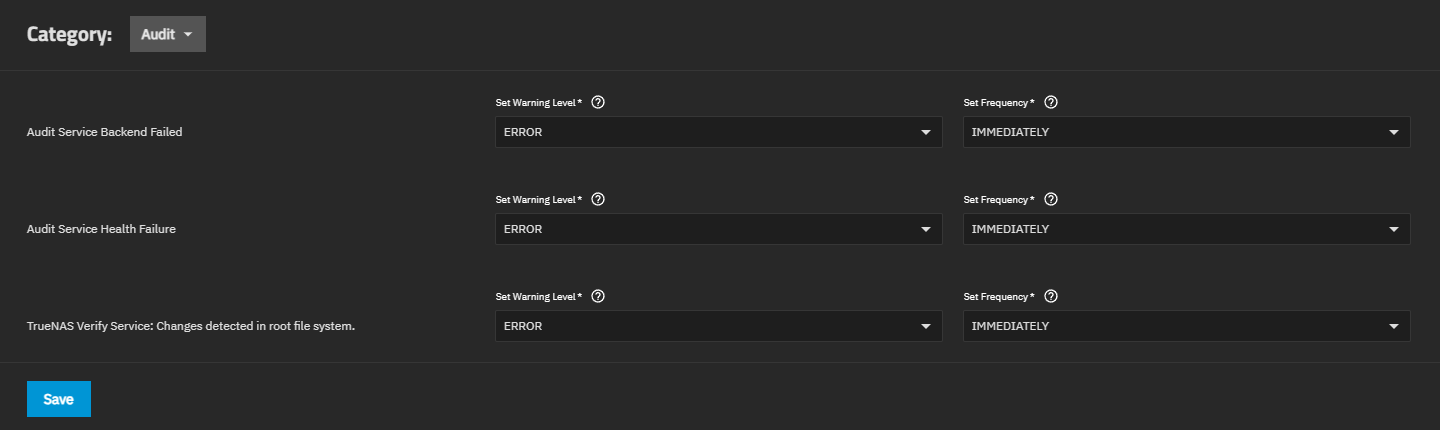
Audit alert settings apply to the audit and verification services on your TrueNAS system.
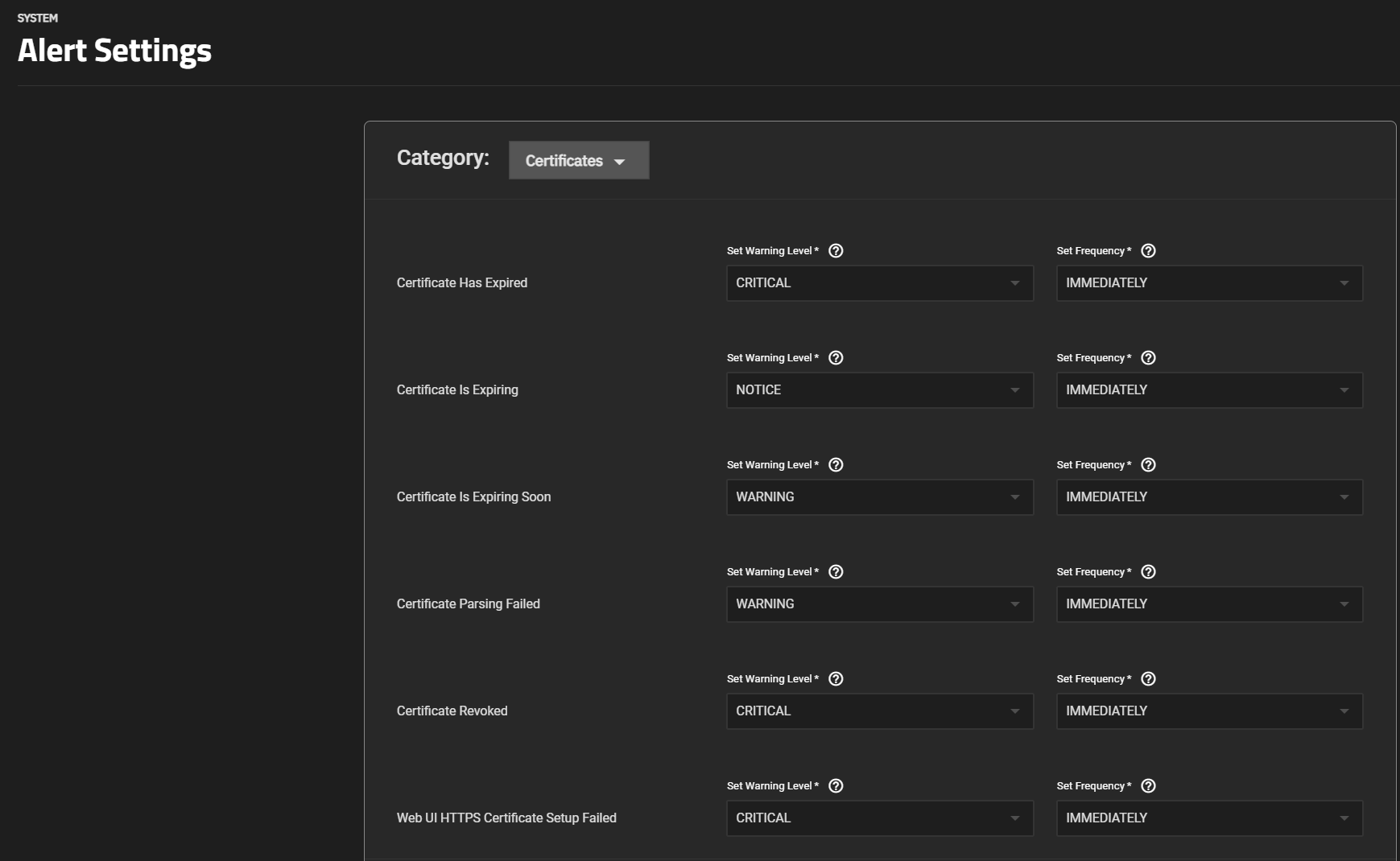
Certificates alert settings apply to certificates you add through the Credentials > Certificates screen.
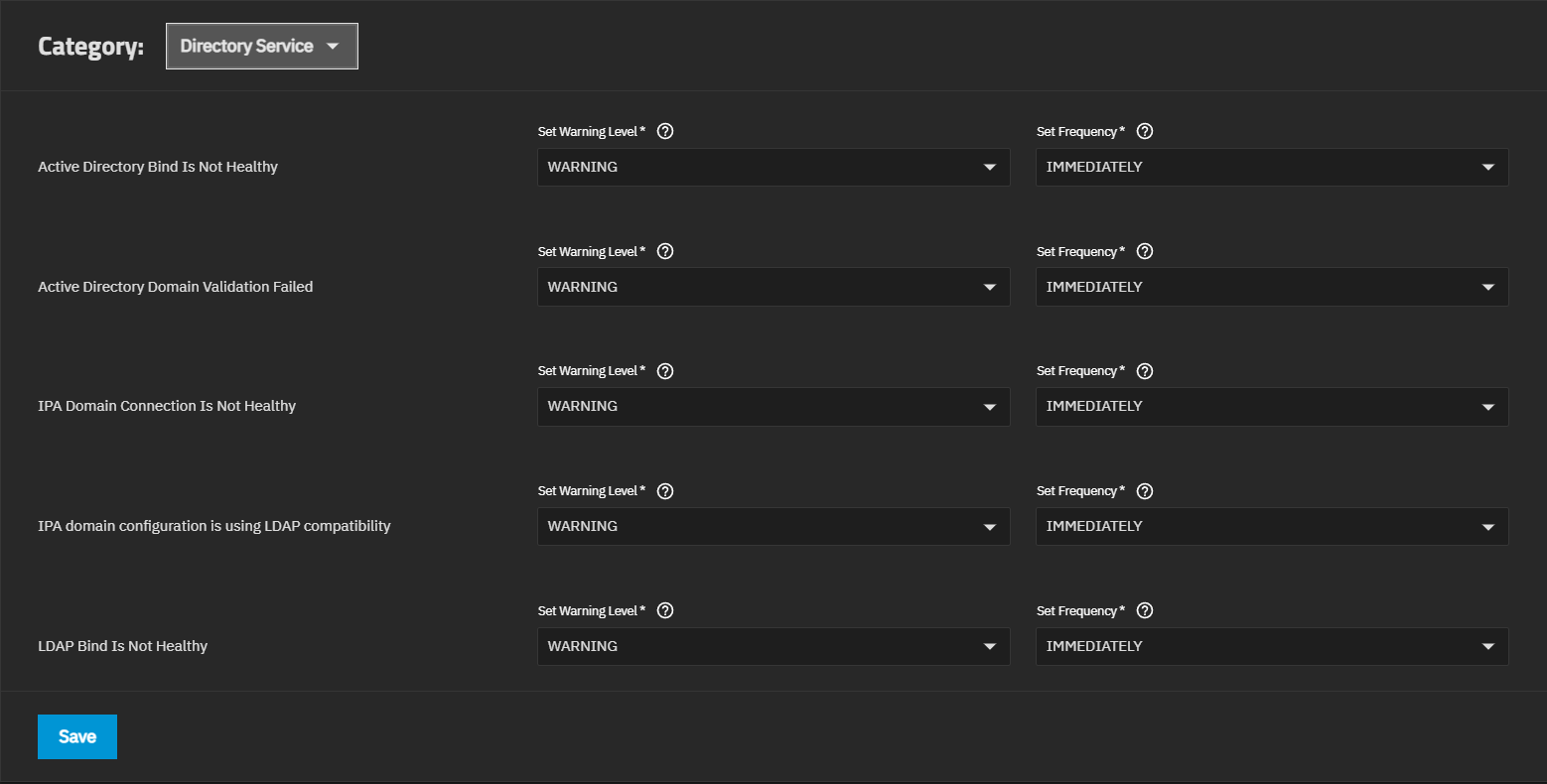
Directory Service alert settings apply to the directory services configured on your TrueNAS.
This section only applies to TrueNAS Enterprise hardware.
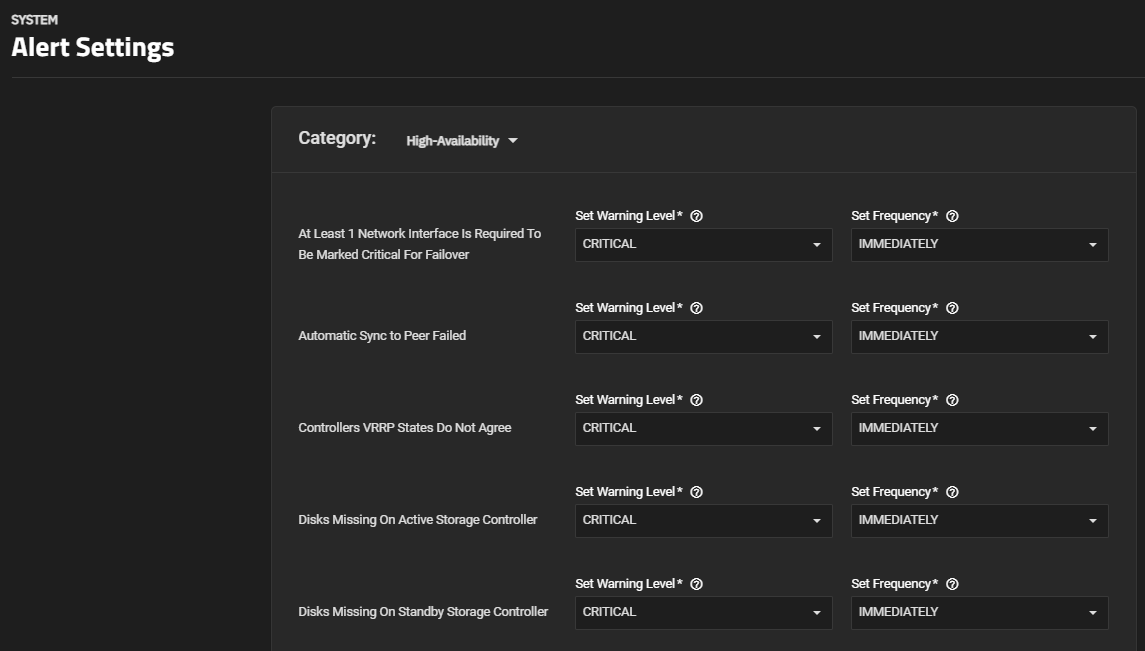
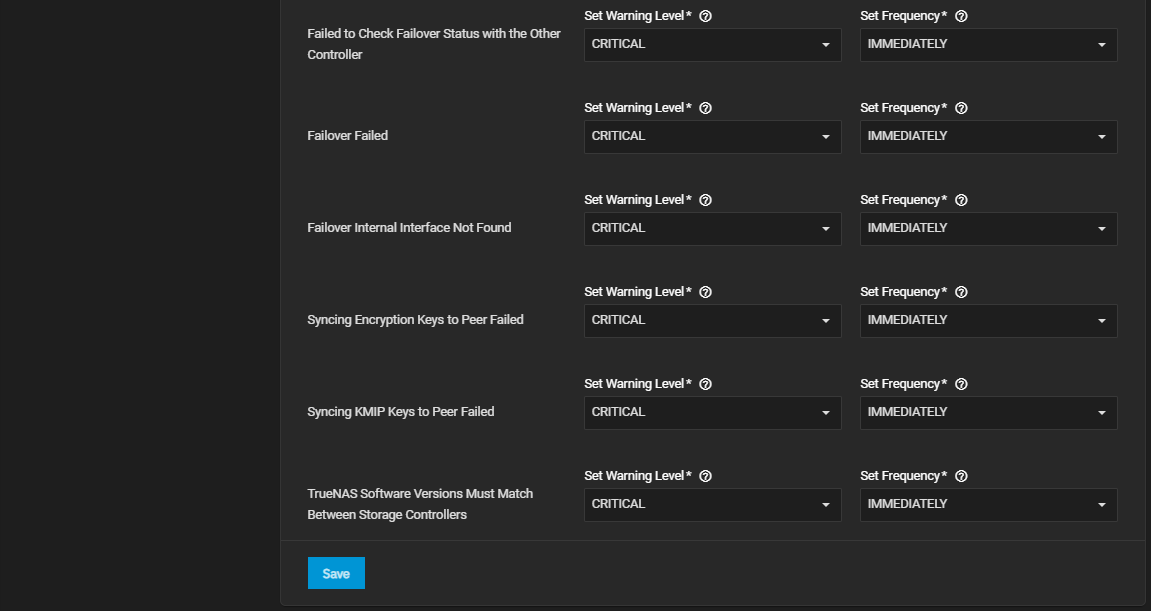
High Availability alert settings apply to TrueNAS Enterprise HA systems and only display on the list of alerts for dual-controller High-Availability systems with an Enterprise license applied.
Click here for more information
You can customize alert settings for when an automatic sync to peer fails, disks are missing on the active and/or standby controller, the system fails to check failover status with the other controller, syncing operations fail, such as encryption keys to peer and KMIP keys to peer, the failover interface is not found, and when a failover action fails.
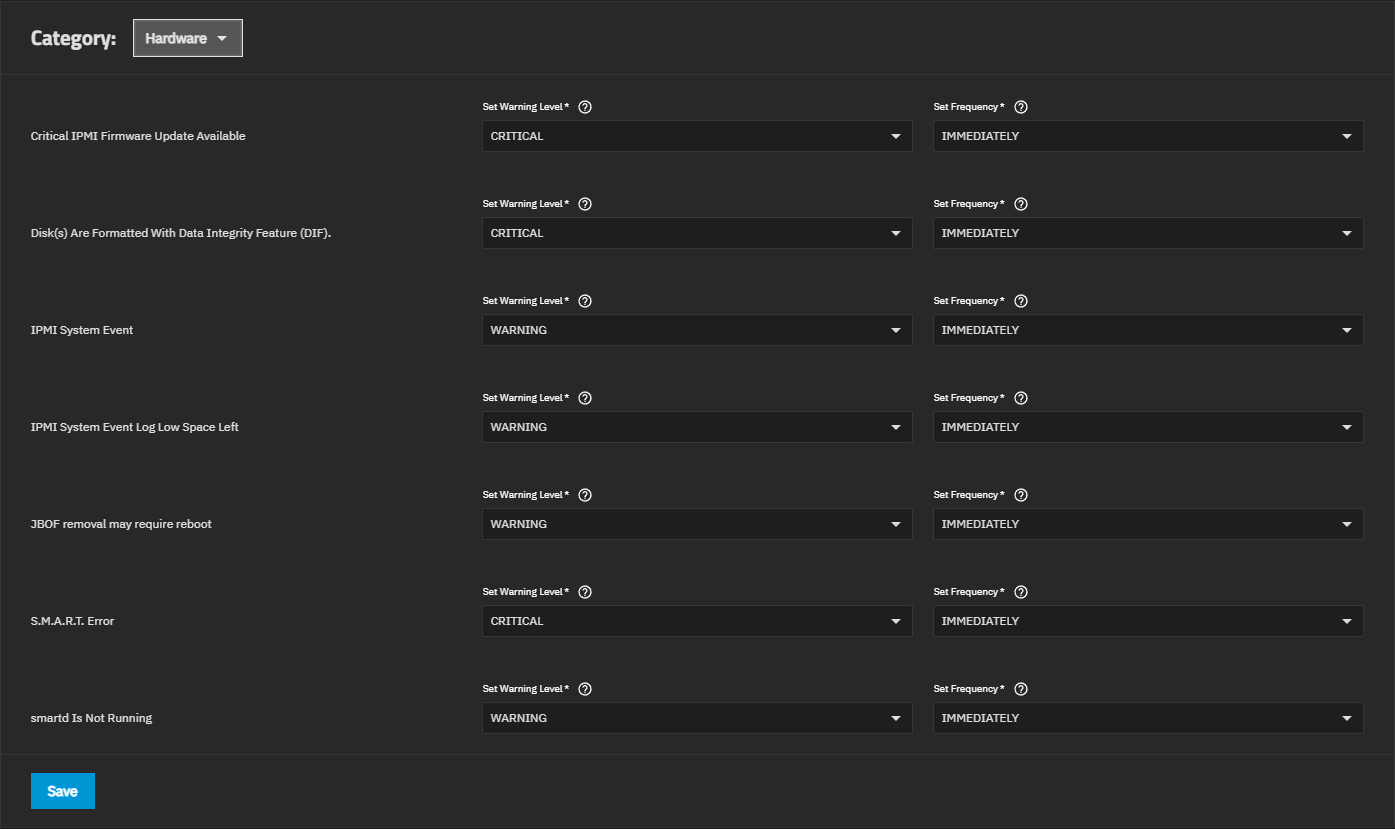
Hardware alert settings apply to the IPMI network connections and disk health monitoring on your TrueNAS system.
You can customize alert settings for when disk temperature is too hot, disk(s) format with the data integrity feature, a selftest fails, erase cycle count is high, IPMI has system events, the IPMI system event log space is low, JBOF removal requires reboot, spare block reserve is low, and uncorrected errors are detected.Click here for more information
 The IPMI System Event Log (SEL) stores system events and can assist with debugging hardware issues.
Review IPMI SEL alerts and resolve any underlying hardware issues before clearing space in the SEL.
Consult manufacturer documentation for your motherboard to learn how to review IPMI system events and clear the log.
The IPMI System Event Log (SEL) stores system events and can assist with debugging hardware issues.
Review IPMI SEL alerts and resolve any underlying hardware issues before clearing space in the SEL.
Consult manufacturer documentation for your motherboard to learn how to review IPMI system events and clear the log.
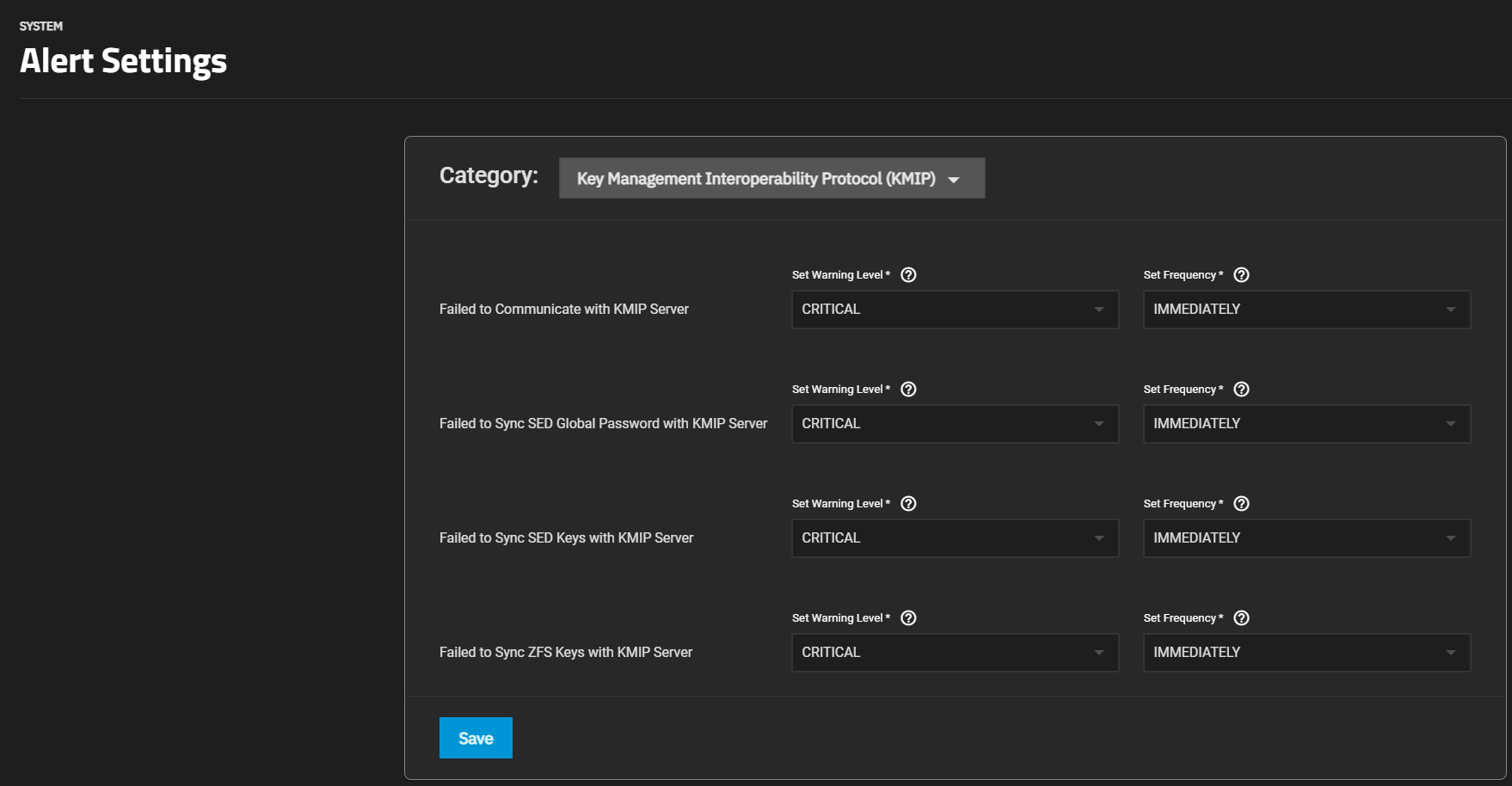
Key Management Interoperability Protocol (KMIP) alert settings only apply to KMIP configured on a TrueNAS Enterprise system.
Network alert settings apply to network interfaces configured on your TrueNAS.
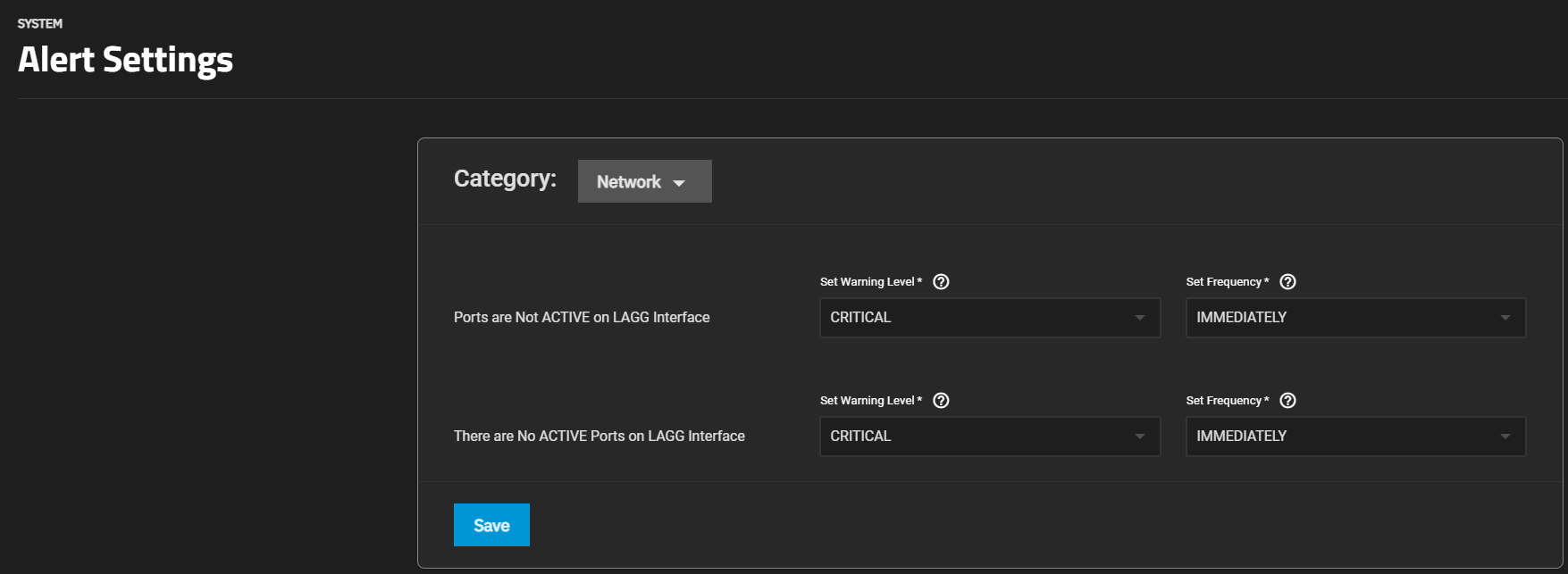
Reporting alert settings apply to netdata, database size threshold, and syslog processes on your TrueNAS.

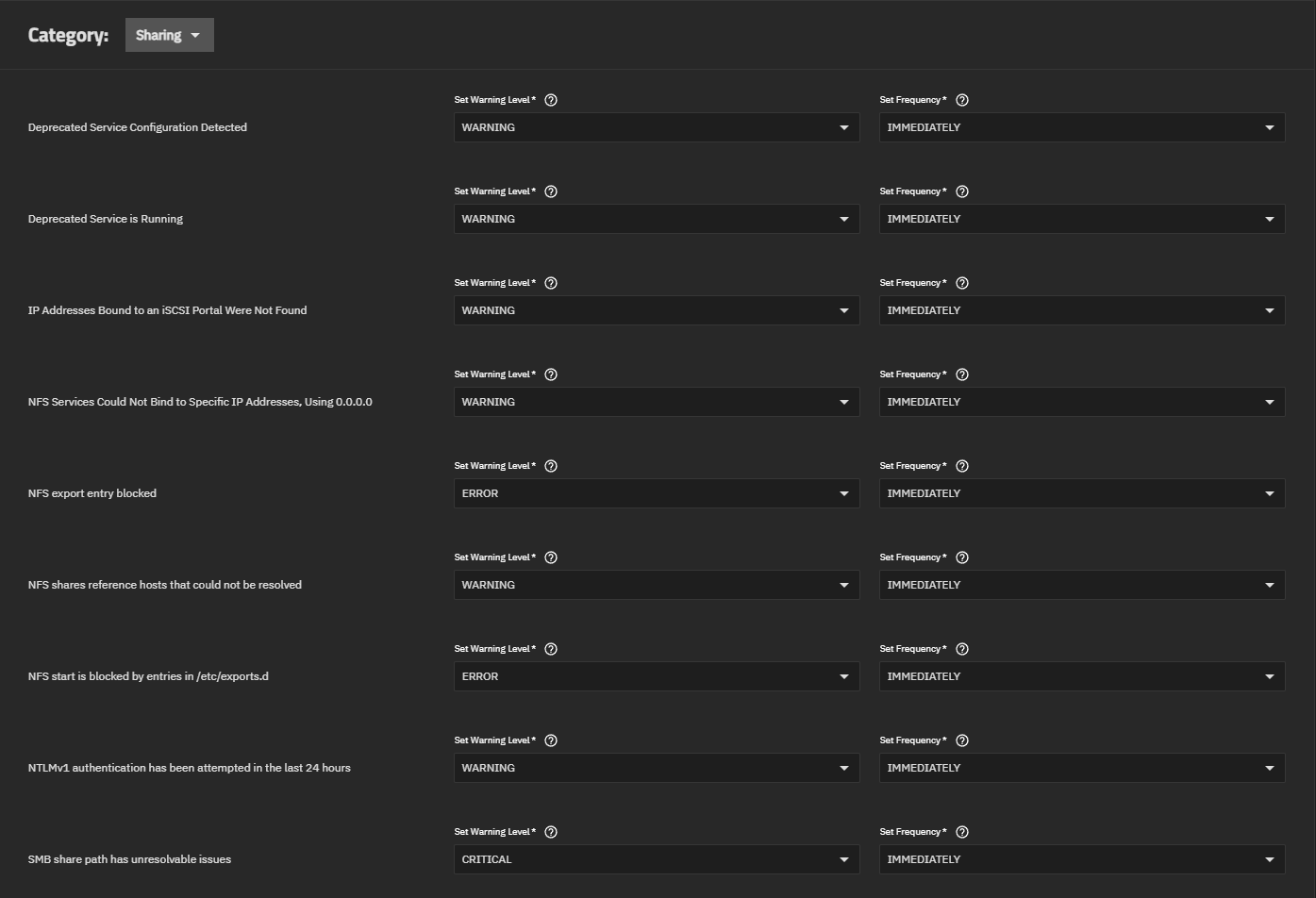
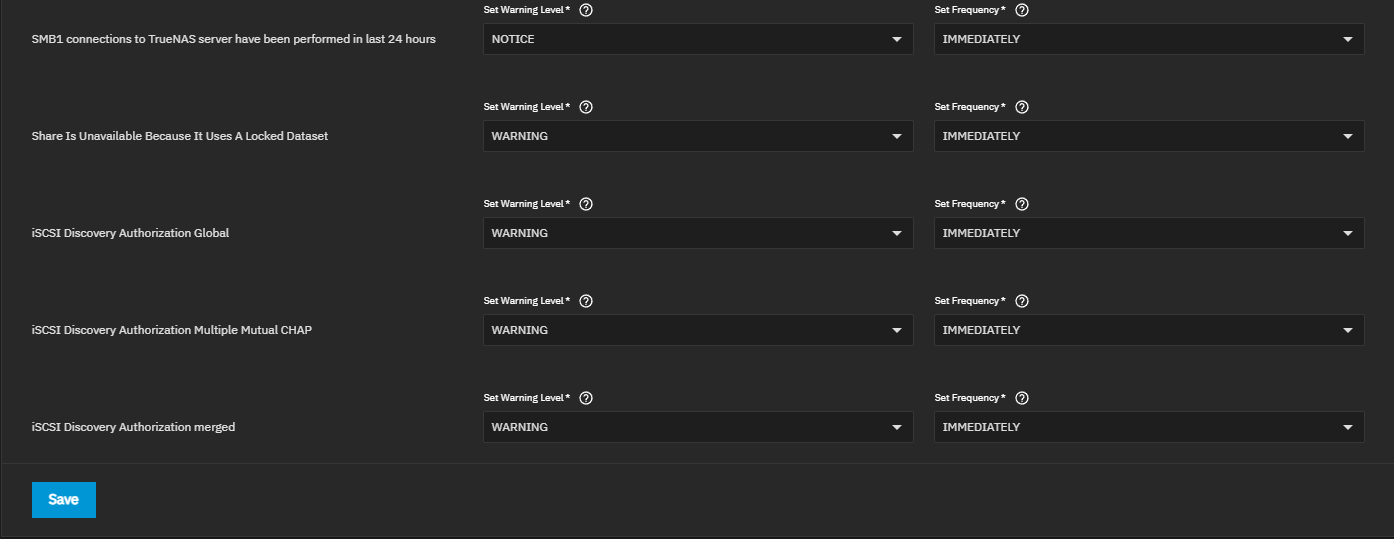
Sharing alert settings apply to iSCSI, NFS, or SMB shares and connections configured on your TrueNAS.
You can customize alert settings for when a deprecated service configuration is detected or a deprecated service is running, and when Fibre Channel HBAs are added or replaced. You can also customize alerts for iSCSI issues: IP addresses bound to an iSCSI portal are not found, iSCSI authorized access has invalid characters or leading/trailing whitespace, and iSCSI discovery authorization is set to global, has multiple mutual CHAP, or is merged. For NFS, you can customize alerts for when NFS services cannot bind to specific IP addresses using 0.0.0.0, an NFS export entry is blocked, host or network lists are excessively long, share references to hosts cannot be resolved, and NFS start is blocked by entries in /etc/exports.d. For SMB, you can customize alerts for when NTLMv1 authentication is attempted in the last 24 hours, SMB1 connections to the TrueNAS server are performed in the last 24 hours, an SMB share audit configuration contains invalid groups, an SMB share path has unresolvable issues, SMB shares use an incorrect recordsize value for Veeam Fast Clone, and an SMB user is missing a required password hash. You can also set alerts for when a share is unavailable because it uses a locked dataset.Click here for more information
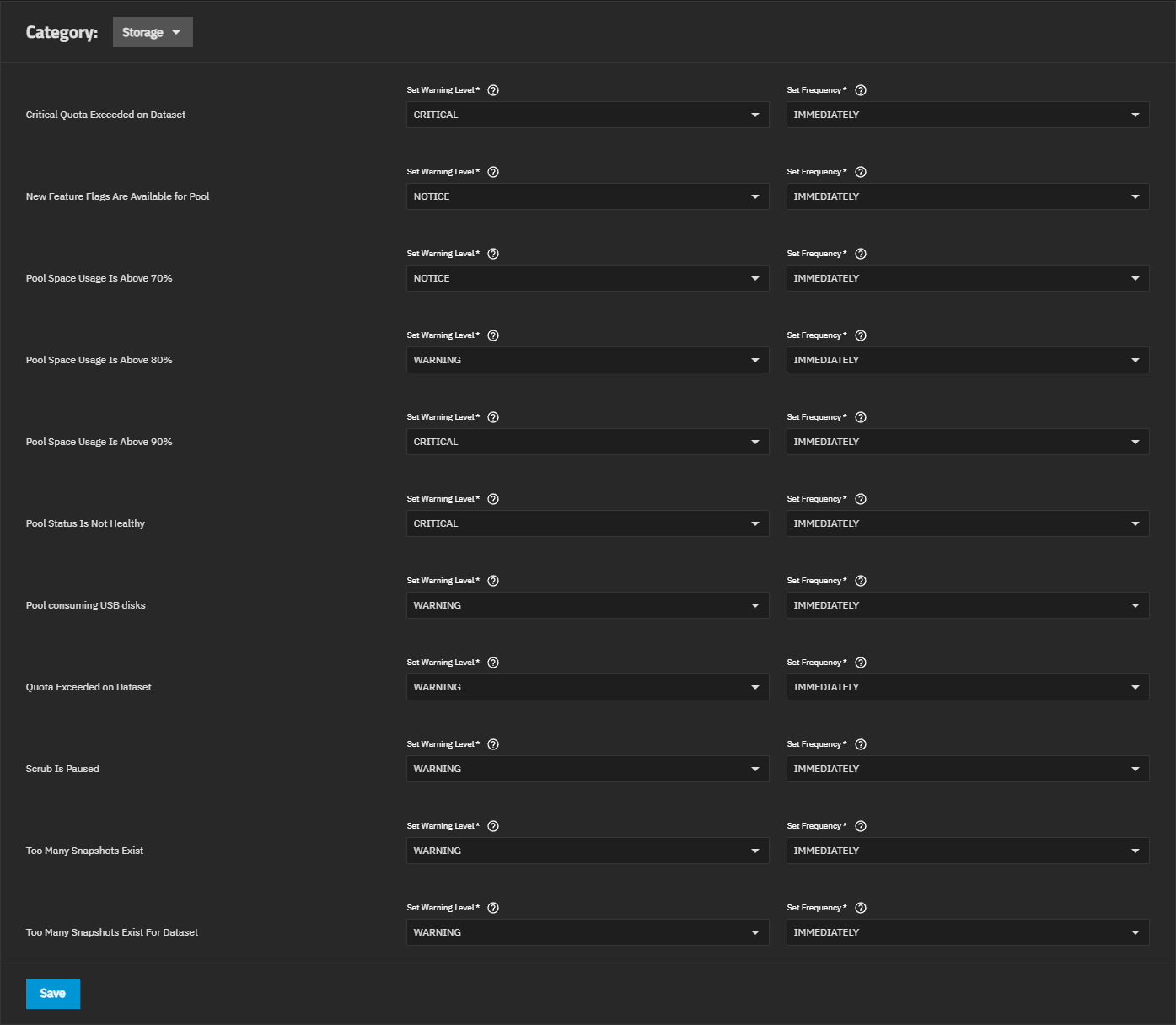
Storage alert settings apply to quotas, pools, snapshots, and scrub processes on your TrueNAS.
You can customize alert settings for when a dataset exceeds standard or critical quotas, a pool has new available feature flags, pool space usage exceeds 85, 90, or 95 percent, and pool status is not healthy. You can also change alert settings for when a scrub pauses, too many snapshots exist on the system or on a specific dataset.Click here for more information
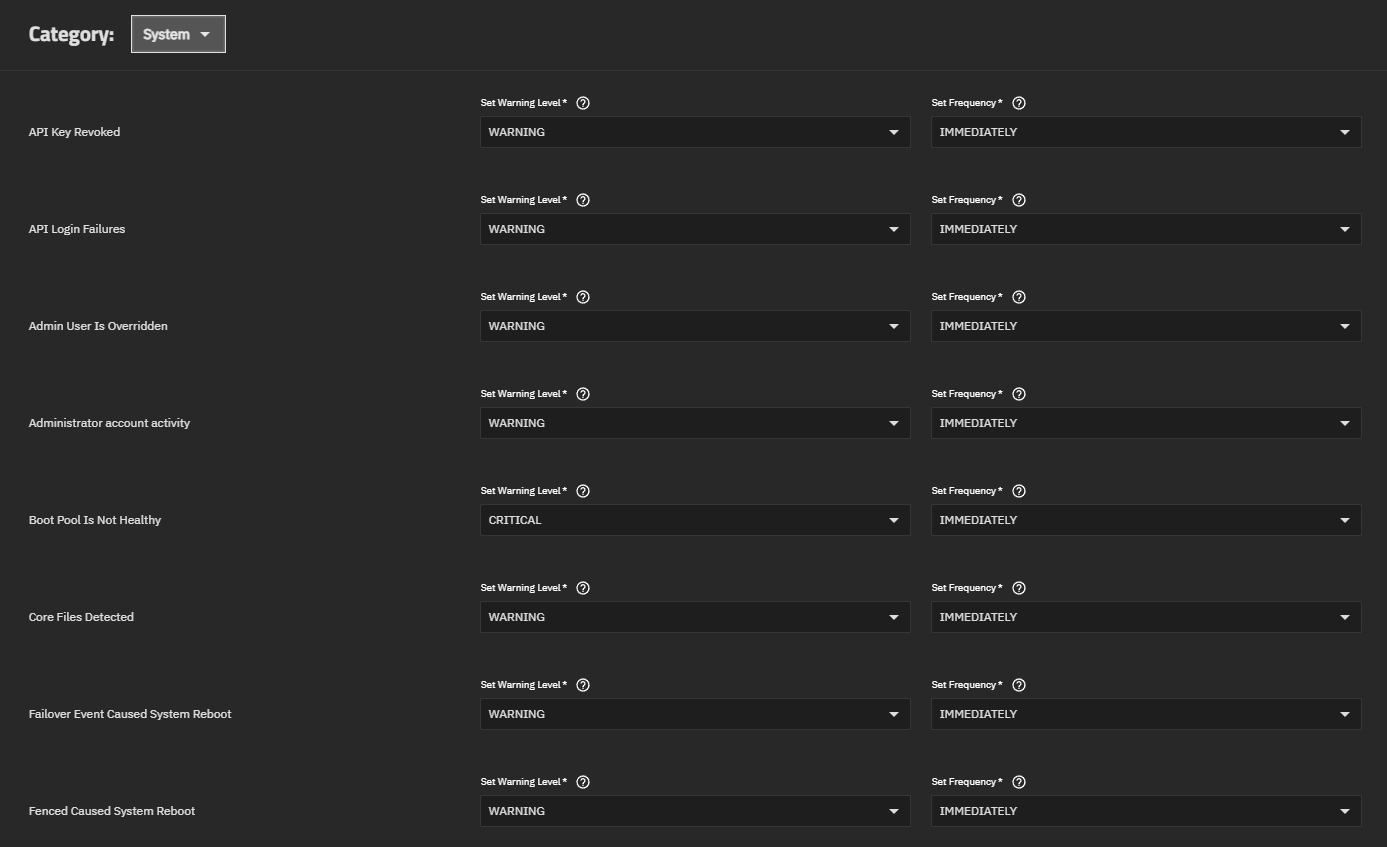
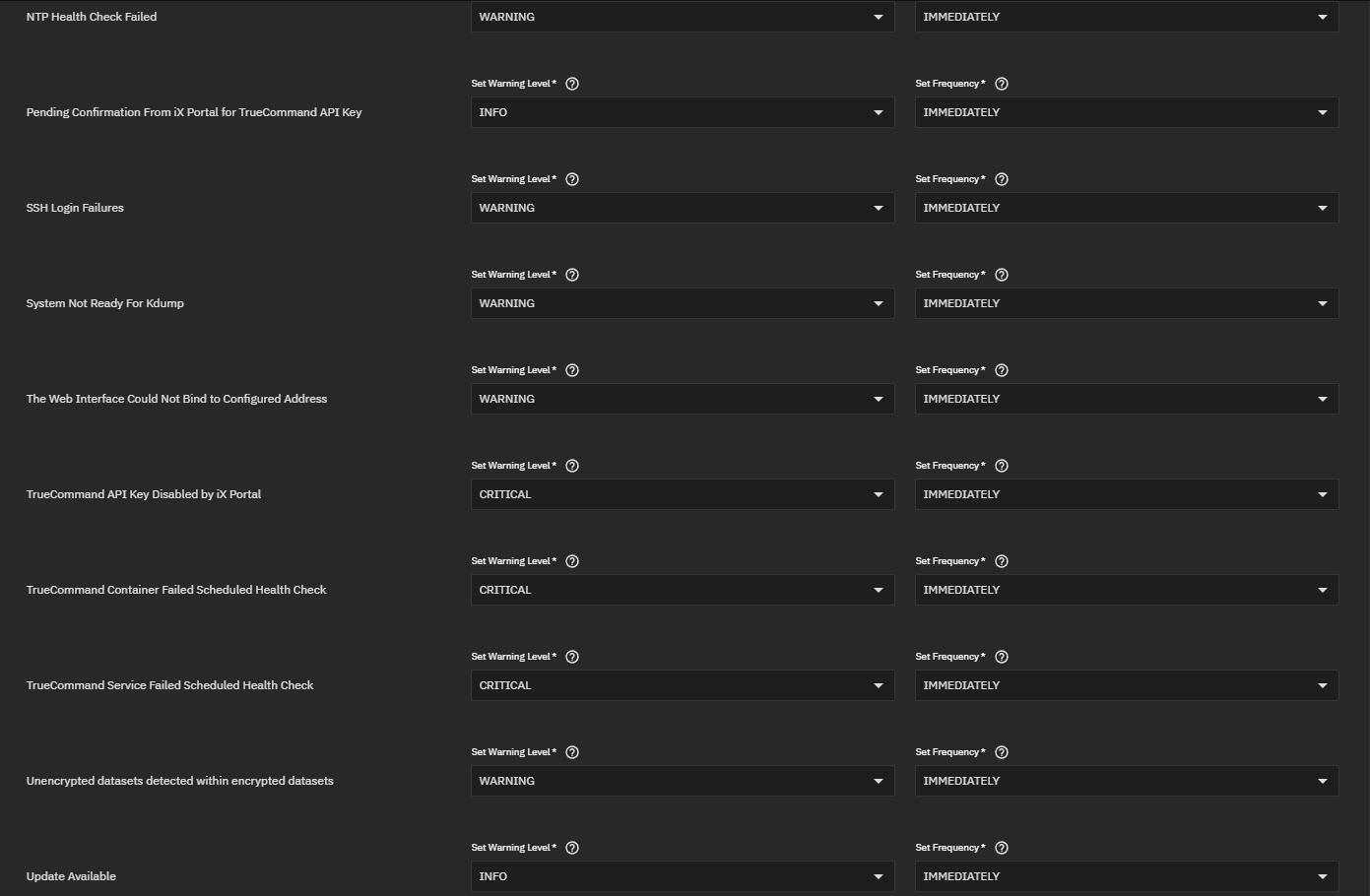
System alert settings apply to system processes, the system dataset, TrueCommand API Key, SSH logins, system restarts, updates, and the web interface.
You can customize alert settings for when an API key is revoked, API or SSH login failures occur, the admin user is overridden, administrator account activity is detected, the boot pool is unhealthy, core files are detected, and the running system version does not match the selected update profile. You can also change alert settings for when a failover event or fencing causes a system reboot, a Gmail OAuth configuration is discarded, NTP health checks fail, a GPU configuration update requires a reboot, the system is not ready for Kdump, and system mocking endpoints are in use. For TrueCommand, you can customize alerts for when an API key is pending confirmation or disabled by iX Portal, and when the TrueCommand container or service fails a scheduled health check. You can also set alerts for when unencrypted datasets are detected within encrypted datasets and when an update is available.Click here for more information
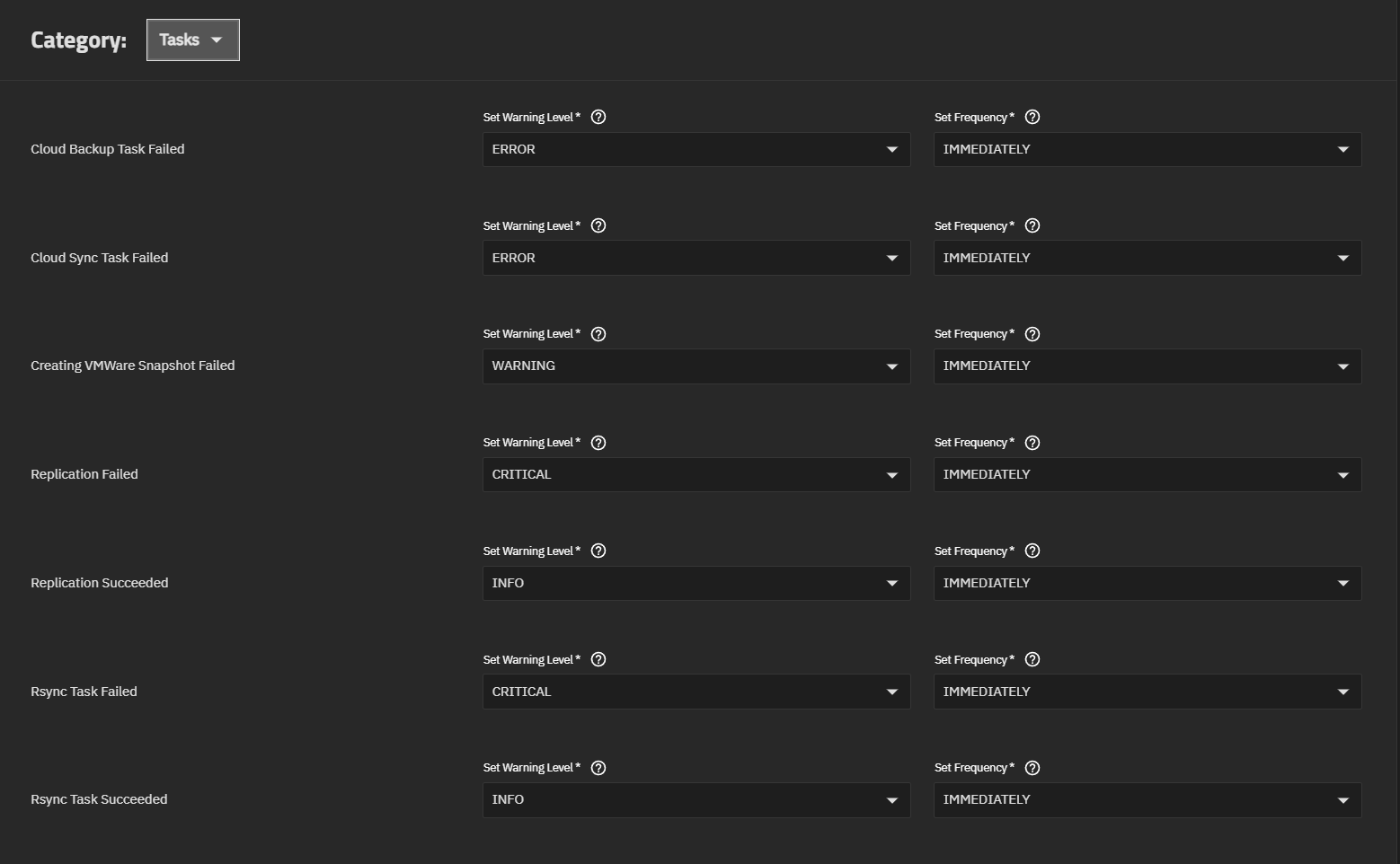
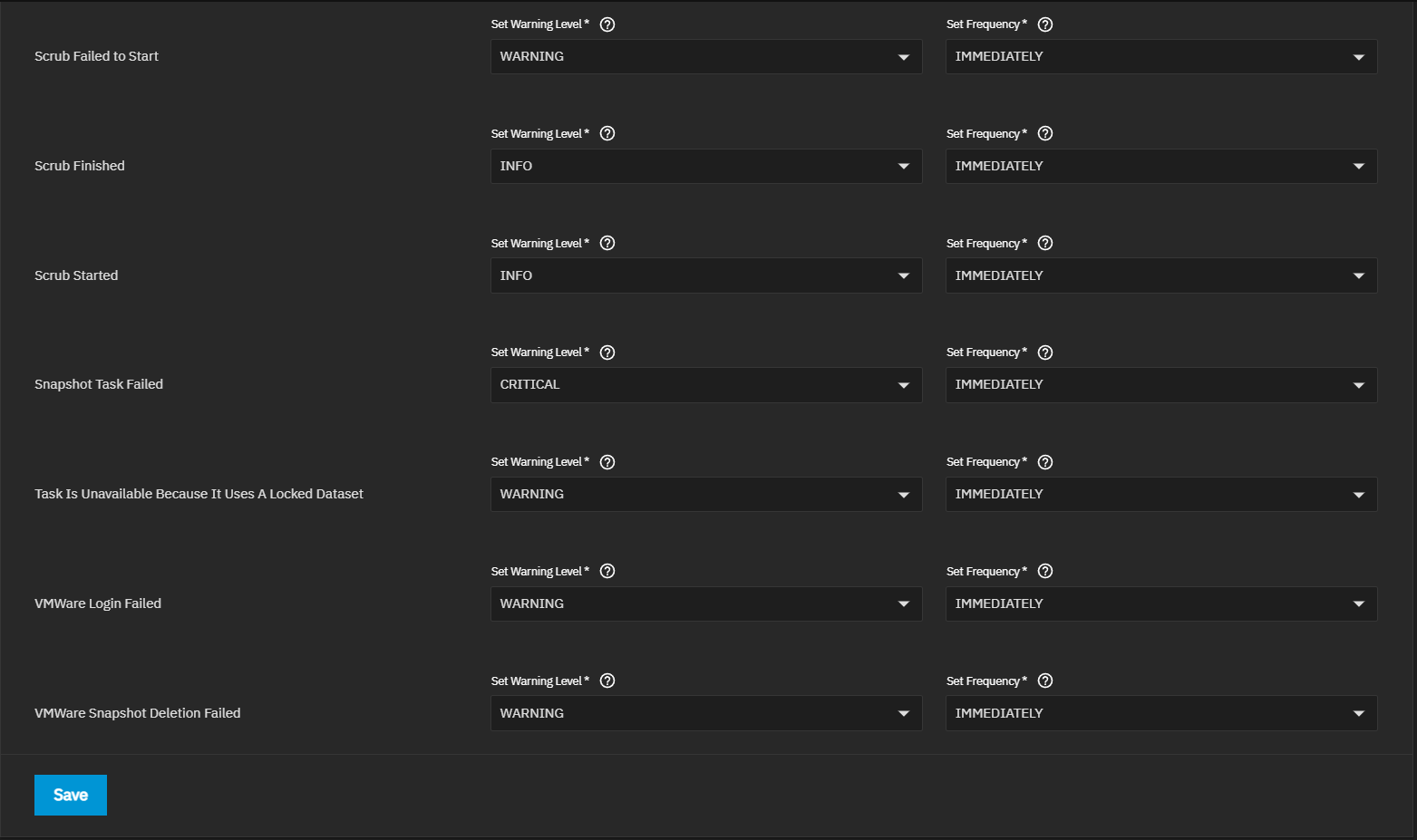
Tasks alert settings apply to cloud sync, VMWare snapshots, replication, rsync, scrub, and snapshot tasks scheduled on your TrueNAS.
You can customize alert settings for when cloud backup or cloud sync tasks fail, a cloud provider is removed, VMWare snapshot creation or deletion fails, VMWare login fails, replication fails or succeeds, rsync tasks fail or succeed, a scrub fails to start or starts, snapshot tasks fail, and when a task is unavailable because it uses a locked dataset.Click here for more information
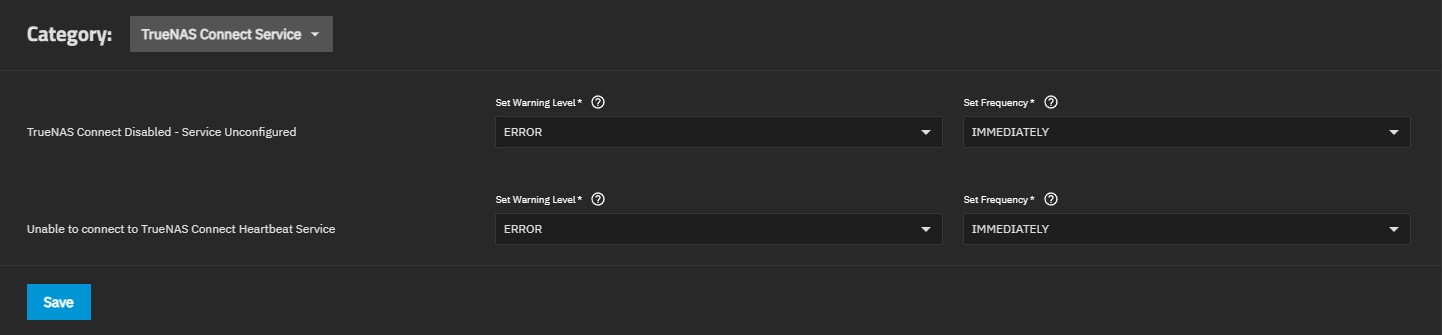
TrueNAS Connect Service alert settings apply to the TrueNAS Connect service on your TrueNAS system.
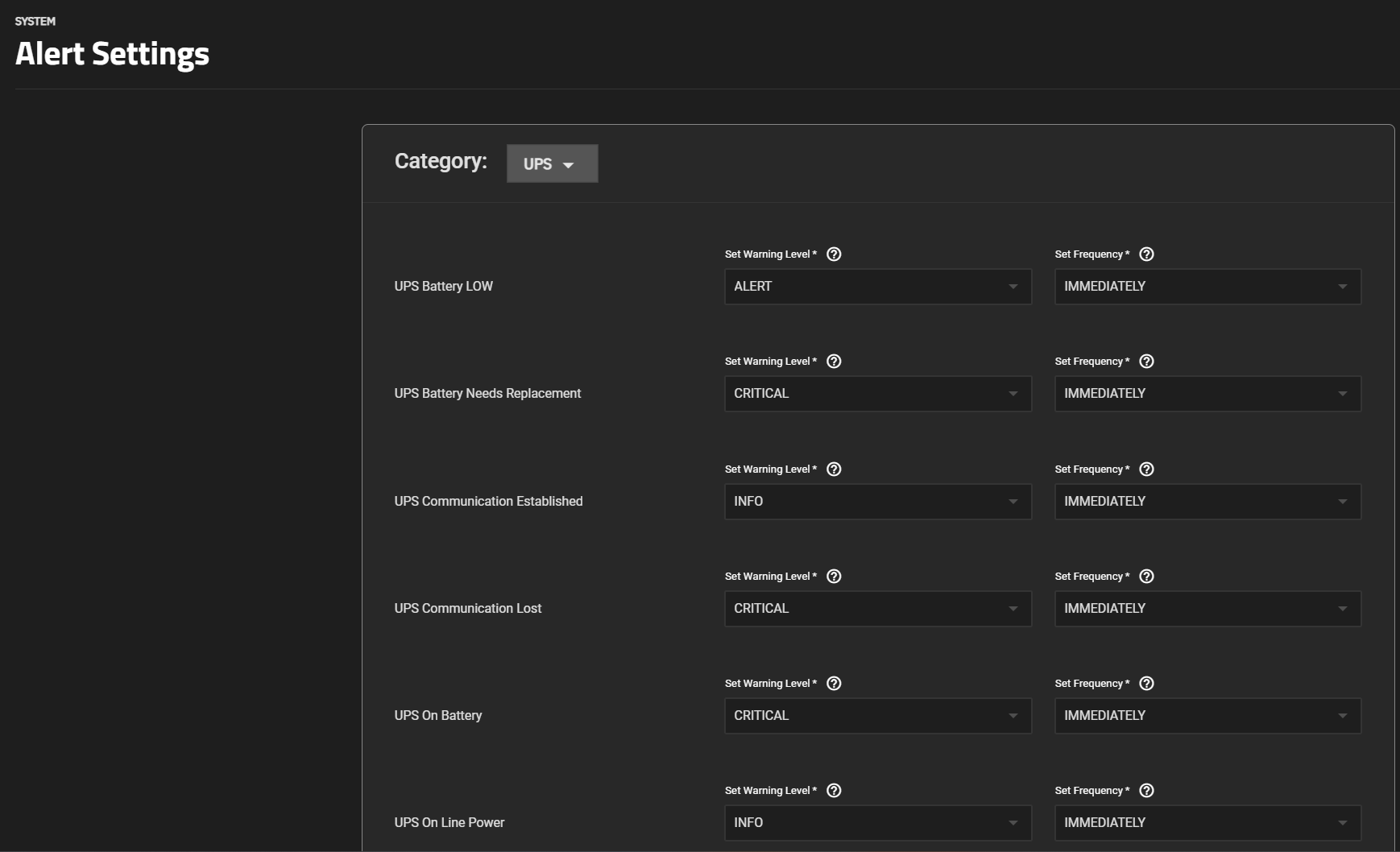
UPS alert settings apply to a UPS connected to your TrueNAS.

Use the Set Warning Level dropdown list to customize alert importance. Each warning level has an icon and color to express the level of urgency.
To make the system email you when alerts with a specific warning level trigger, set up an email alert service with that warning level. TrueNAS sends alert notifications for all warnings matching and above the selected level For example, a warning level set to Critical triggers notifications for Critical, Alert, and Emergency level warnings.
| Level | Icon | Alert Notification? |
|---|---|---|
| INFO |  | No |
| NOTICE | | Yes |
| WARNING |  | Yes |
| ERROR |  | Yes |
| CRITICAL | | Yes |
| ALERT | | Yes |
| EMERGENCY | | Yes |
Use the Set Frequency dropdown list to adjust how often the system sends or displays alert notifications.
Alert frequency options are Immediately (Default), Hourly, Daily or Never. Setting the Frequency to Never prevents that alert from displaying in the Alerts Notification dialog, but it still pops up in the web UI if triggered.