




TrueNAS Development Documentation
This content follows experimental development changes in TrueNAS 28, a future version of TrueNAS.
Use the Product and Version selectors above to view content specific to a stable software release.
Updating TrueNAS
6 minute read.
TrueNAS updates system software from the System > Update screen. Updates can be installed from the update server or by uploading a local update file.
Update profiles control which TrueNAS releases the system checks for updates. Community Edition systems default to the highest profile available for the installed version. For example, a fresh install of a General release defaults to the General profile.
TrueNAS Enterprise systems ship with the Mission Critical profile set by default. Enterprise users can select General or Mission Critical only.
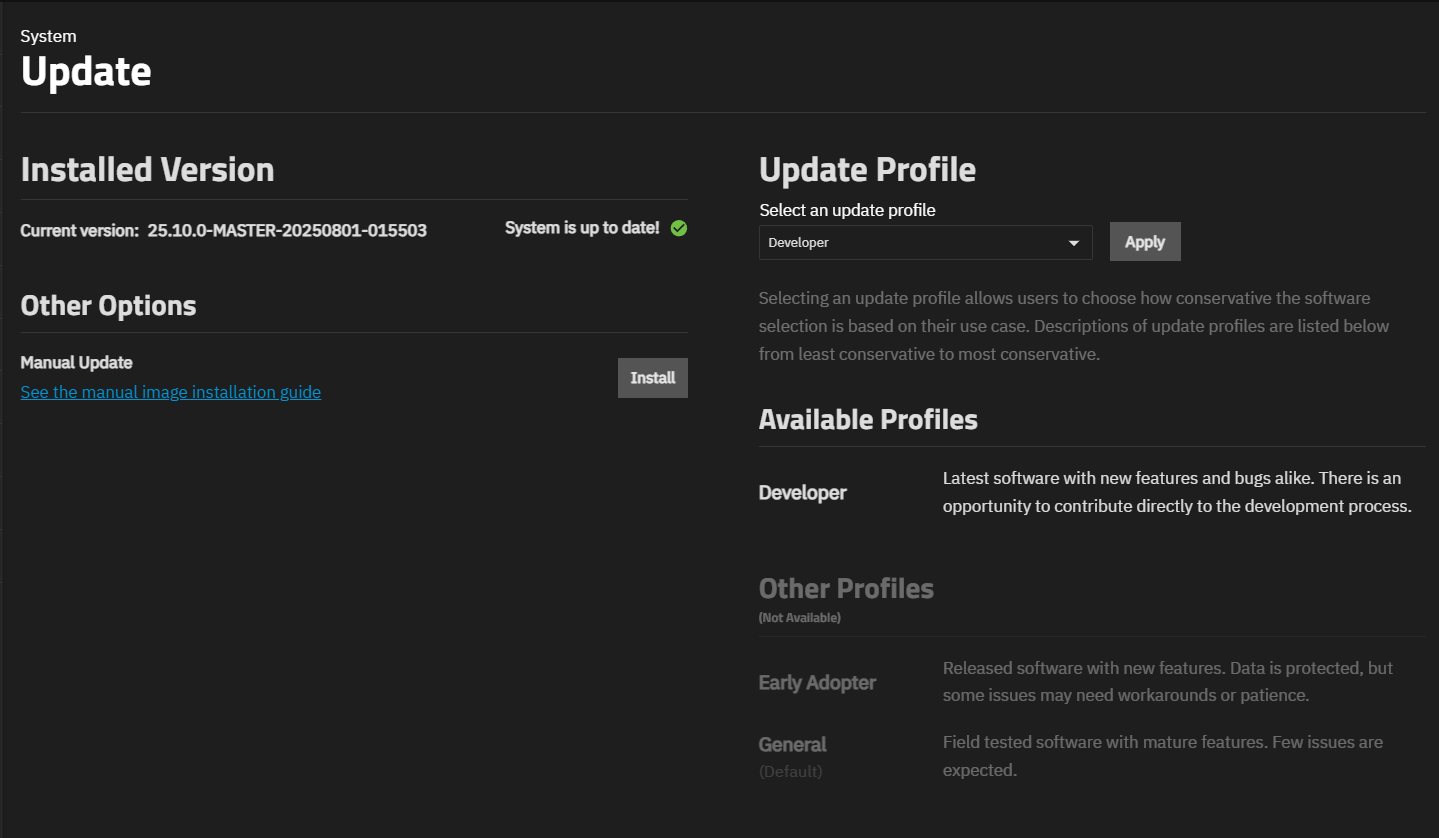
The Update screen shows the installed version, other installation or update options, and user profiles. Some users can select a different profile option from the Select an update profile dropdown list.
Before upgrading to a new major version, update to the latest maintenance release of the current major version. See Upgrade Paths on the Software Status page for the supported paths from your current version, and the recommended versions table for guidance on which release to target.
The TrueNAS Update screen provides options to install updates from the update server or upload a local update file.
We recommend updating TrueNAS when the system is idle (no clients connected, no disk activity, etc.). The system restarts after an update. Update during scheduled maintenance times to avoid disrupting user activities.
All auxiliary parameters are subject to change between major versions of TrueNAS due to security and development issues. We recommend removing all auxiliary parameters from TrueNAS configurations before upgrading.
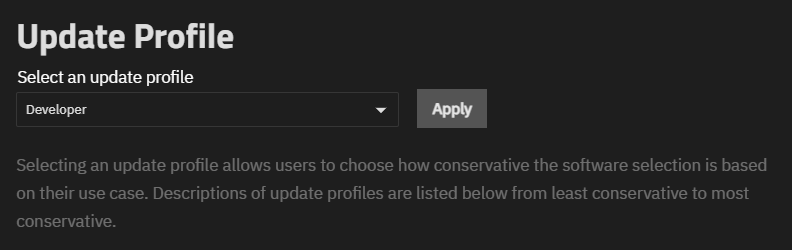
The Update Profile section on the Update screen controls which releases TrueNAS checks for updates. Change it only if you want to shift to a different release cadence.
TrueNAS has four distinct update profiles:
- Developer — Developer software with new features and bugs alike. Allows users to contribute directly to the development process.
- Early Adopter — Pre-release access to new features and functionality of TrueNAS software. Some issues might need workarounds, bug reports, or patience.
- General — Field-tested software with mature features. Few issues are expected.
- Mission Critical — Mature software that enables 24×7 operations with high availability for a very clearly defined use case. Software updates are very infrequent and based on need.
See the TrueNAS Software Status page for current recommendations by user type.
Enterprise users can select General or Mission Critical only. Community Edition users can select Developer, Early Adopter, or General.
The dropdown only shows profiles at or below the level of the currently installed version. A system on a General release profile can select General, Early Adopter, or Developer. A system on an Early Adopter release profile can select Early Adopter or Developer, but not General. Profiles above the current version level appear in the Other Profiles (Not Available) section and cannot be selected until the system runs a release at that profile level.
The Developer update profile uses a non-production train in active development. Do not use this profile unless you intend to keep the system permanently on early versions and are not storing critical data on it. Testers are encouraged to submit bug reports with debug files. For information on how to file an issue ticket, see Reporting an Issue.
To change the update profile:
- Go to System > Update.
- In the Update Profile section, select the desired profile from the Select an update profile dropdown.
- Click Apply.
- In the confirmation dialog, click Continue.
TrueNAS refreshes the update check after you apply the new profile.
If an update is available, it shows in the Update Available section on the Update screen.
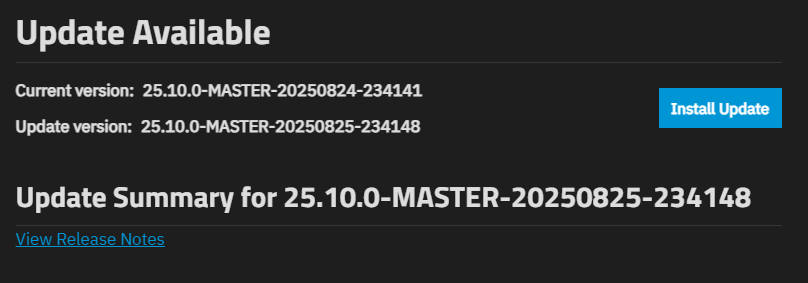
Click Install Update to begin. The Save configuration settings from this machine before updating? window opens.
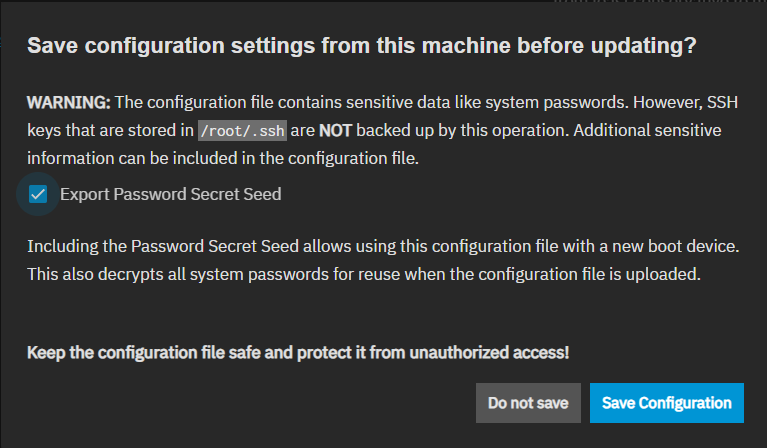
Select Export Password Secret Seed, then click Save Configuration.
TrueNAS downloads the configuration and the update files, then starts the installation.
After updating, clear the browser cache (CTRL+F5) before logging in to TrueNAS. This ensures stale data doesn’t interfere with loading the TrueNAS UI.
Manual update files are available from the TrueNAS Download page and Update Downloads. Use this option to install a specific build directly.
Click Install to the right of Manual Update. The Save configuration settings from this machine before updating? window opens. Click Export Password Secret Seed then click Save Configuration. The Manual Update screen opens.
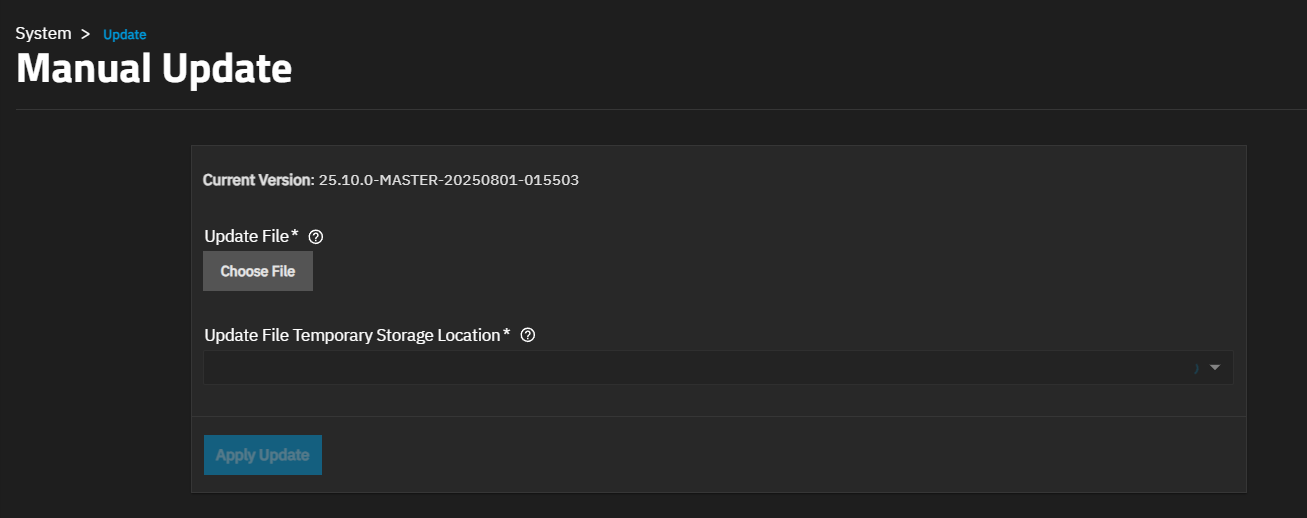
Click Choose File to locate the update file on your system. Select a location from the Update File Temporary Storage Location dropdown. Select Memory Device to store the update file in system RAM during installation, or select a pool mount path to store it on disk if the system has limited memory available.
Click Apply Update to start the update process. A status window opens displaying installation progress. When complete, the system automatically Restarts.
When a system update starts, appears in the toolbar at the top of the UI. Click the icon to see the current status of the update and which TrueNAS administrative account initiated the update.
