




TrueNAS Development Documentation
This content follows experimental development changes in TrueNAS 28, a future version of TrueNAS.
Use the Product and Version selectors above to view content specific to a stable software release.
User and Group Quota Screens
5 minute read.
TrueNAS allows setting data or object quotas for user accounts and groups cached on, or connected to the system.
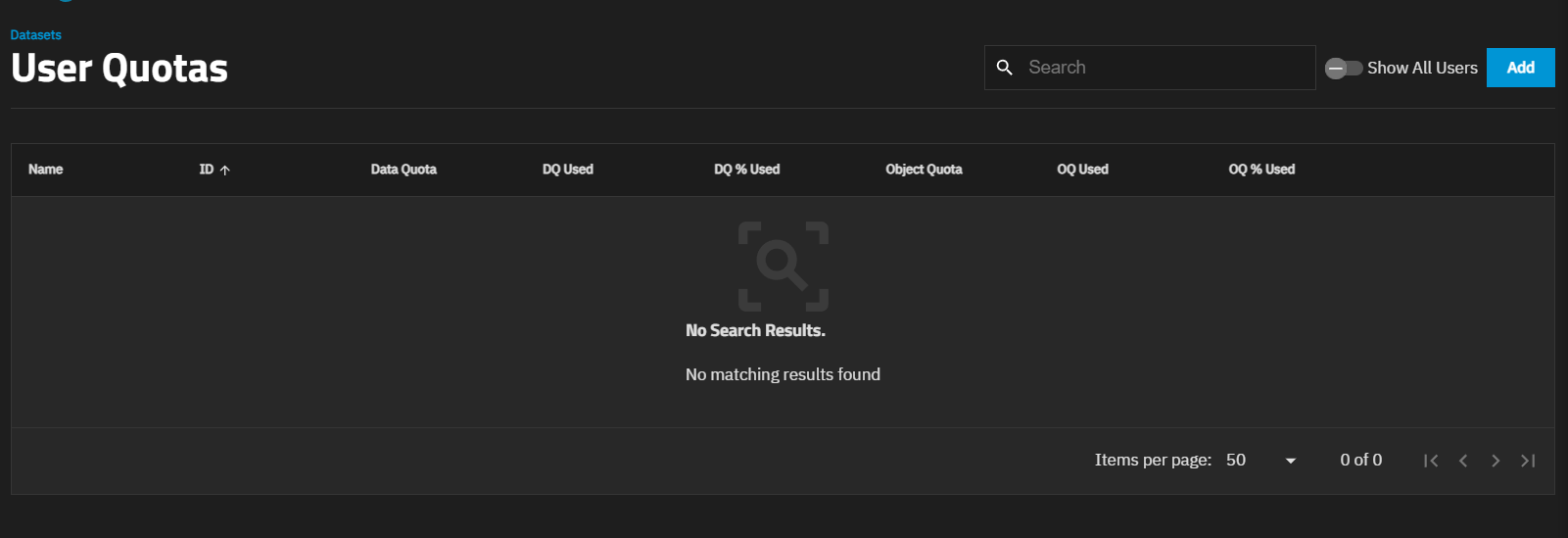
Manage User Quotas on the Dataset Space Management card opens the User Quotas screen. The User Quotas screen shows the names and quota data for user accounts cached on or connected to the system. When no user quotas exist, the screen shows No Search Results and No matching results found in the center of the screen.
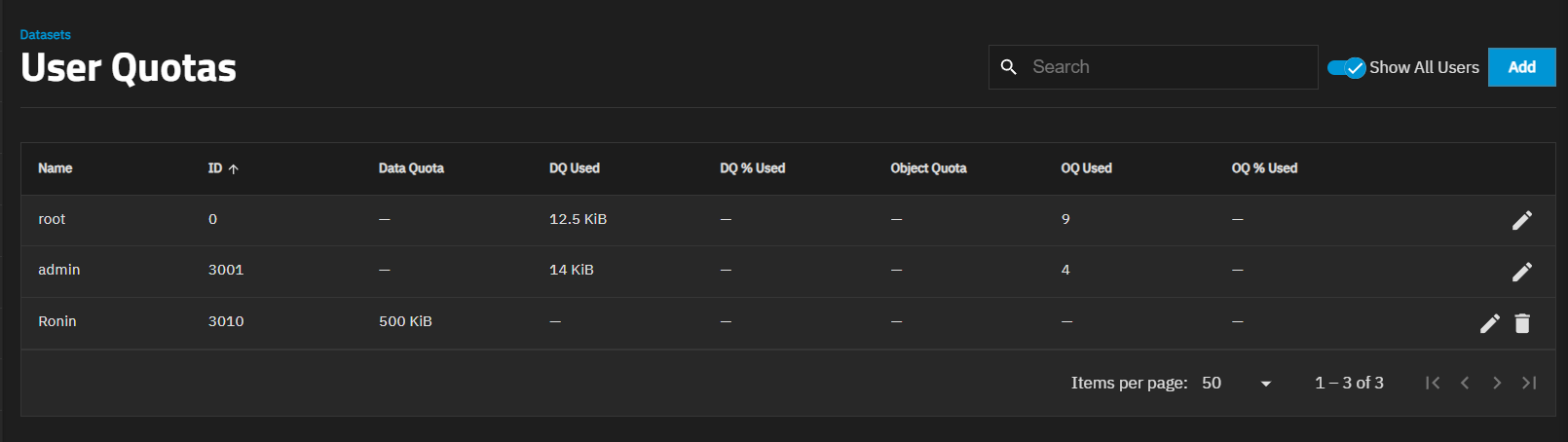
Show All Users shows the hidden builtin user quotas for the root and current logged-in admin user.
Add opens the Add User Quotas screen.
The Edit icon for a user opens the Edit User Quota screen.
The Show All Users toggle opens the Show All Users dialog.
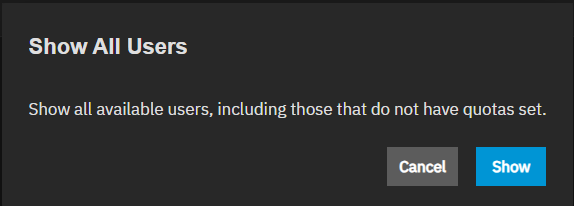
Clicking the Show All Users toggle again to hide builtin users, opens the Filter Users dialog.
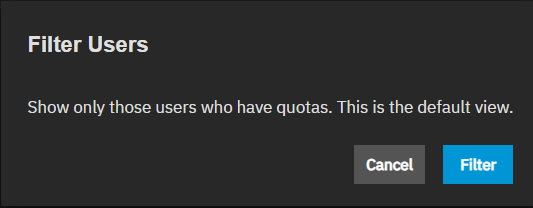
Filter hides the builtin users on the Users Quotas screen.
The Add User Quotas screen shows settings in two sections: Set Quotas and Apply Quotas to Selected Users.
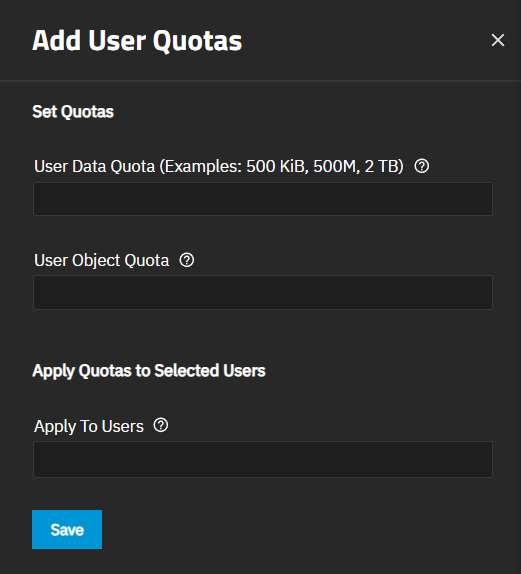
Save sets the quotas and closes the screen. Clicking the X closes the screen without saving changes.
The Edit User Quota window allows you to modify the user data quota and user object quota values for an individual user.
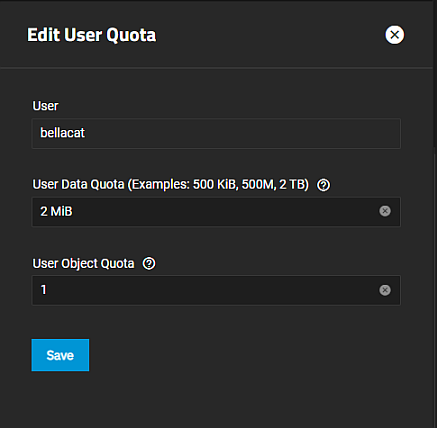
Save sets the quota changes and closes the screen. Clicking the “X” closes the screen without saving changes.
| Settings | Description |
|---|---|
| User | Shows the name of the selected user and it is not editable. |
| User Data Quota (Examples: 500KiB, 500M, 2 TB) | Specifies the amount of disk space the selected user can use. Entering 0 allows using all disk space. Values are entered as 50 GiB, 500M, 2 TB, etc. Not specifying a value defaults to bytes. |
| User Object Quota | Specifies the number of objects the selected user can own. Entering 0 allows unlimited objects. |
Manage Group Quotas on the Dataset Space Management card opens the Group Quotas screen.
The Group Quotas screen shows the names and quota data of any groups cached on or connected to the system. When no group quotas exist, the screen shows No Search Results and No matching results found in the center of the screen.
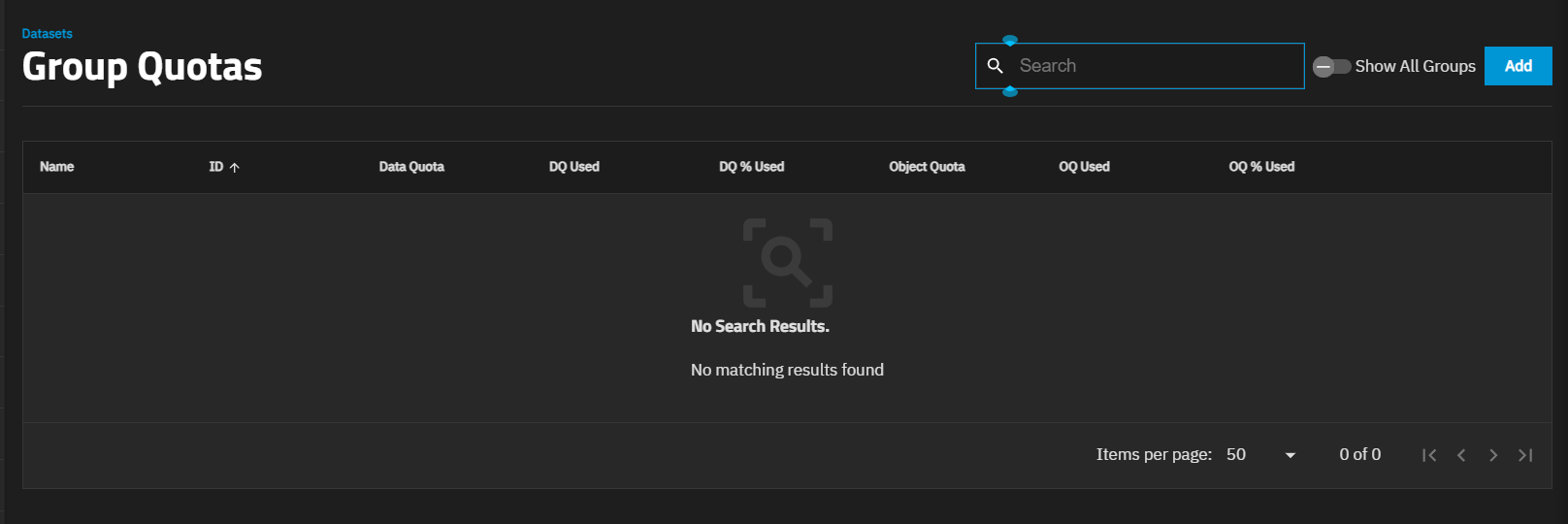
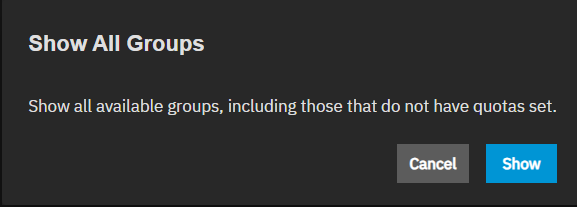
The Show All Groups toggle opens the Show All Groups dialog. Show shows the hidden builtin user group quotas for the root and current logged-in admin user.
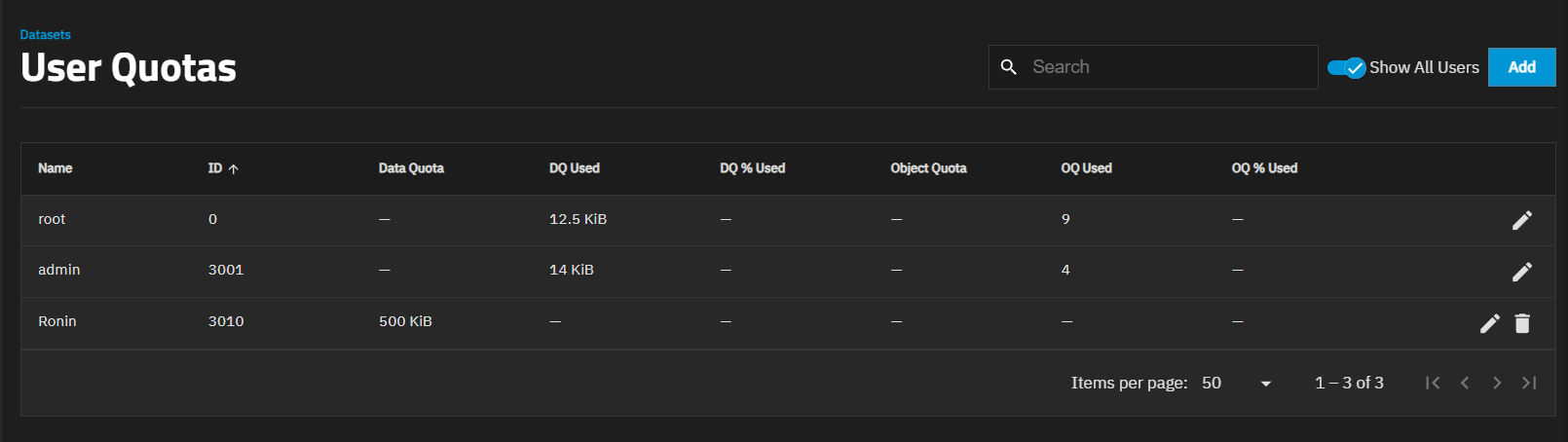
Add opens the Add Group Quotas screen.
The Edit icon for a group opens the Edit Group Quota screen.
The Show All Groups toggle opens the Show All Groups dialog.
Clicking the Show All Groups toggle again to hide builtin users, opens the Filter Groups dialog.
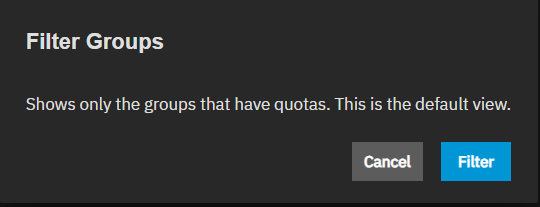
Filter hides the builtin groups on the Group Quotas screen.
The Add Group Quotas screen shows settings in two sections: Set Quotas and Apply Quotas to Selected Groups.
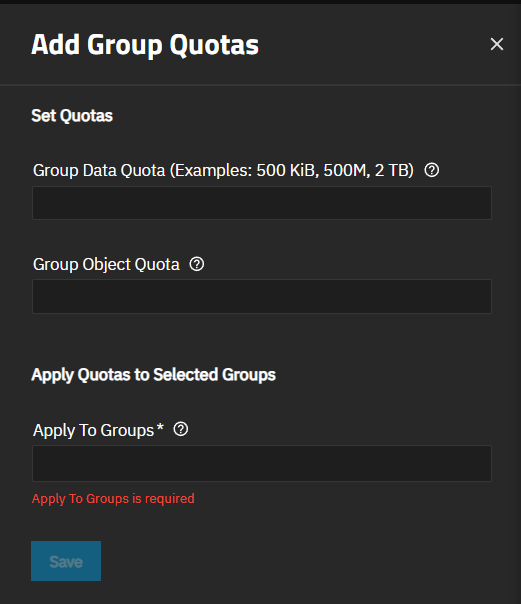
Save sets the quota changes and closes the screen. Clicking the “X” closes the screen without saving changes.
The Edit Group window allows you to modify the group data quota and group object quota values for an individual group.
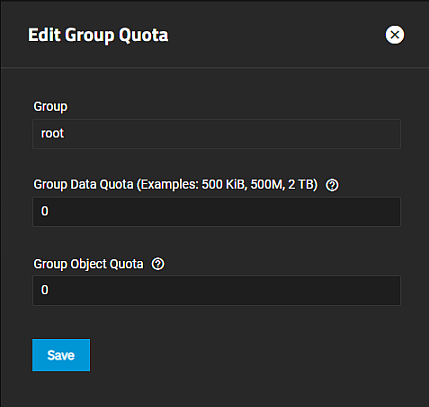
Save sets the quota changes and closes the screen. Clicking the “X” closes the screen without saving changes.