




TrueNAS Development Documentation
This content follows experimental development changes in TrueNAS 28, a future version of TrueNAS.
Use the Product and Version selectors above to view content specific to a stable software release.
Managing User or Group Quotas
3 minute read.
TrueNAS allows setting data or object quotas for datasets, or user and groups accounts cached on or connected to the system.
You can set up quotas through the Add Dataset > Advanced Options or Capacity Settings screens. Dataset quotas allocate space in the datasets by parent alone or parent and any child datasets of the parent. Use the quota settings on the Add Dataset > Advanced Options screen to set up quota alarms and set aside space in a dataset.
After setting up dataset quotas, use the Edit option on the Datasets > Space Management card to open the Capacity Settings screen. You can use this screen to add new and edit existing dataset quotas.
See Adding and Managing Datasets for more information.
To view and edit user quotas, go to Datasets and click Manage User Quotas on the Dataset Space Management card to open the User Quotas screen. Click Add to open the Add User Quota screen.
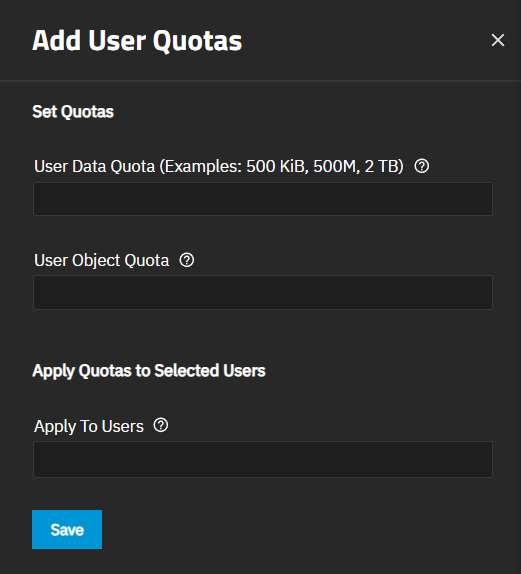
User Data Quota is the amount of disk space that selected users can use. User Object Quota is the number of objects selected users can own.
Enter the amount of space you want to allocate to the user. Include the unit such as KiB, TiB, etc along with the number value. Not entering the unit defaults to bytes.
(Optional) Enter the number of objects the user can own, per entered user, in User Object Quota or leave this empty or set to 0 to allow unlimited objects.
Click in the Apply to Users field to see a list of system users, including any users from a directory server that is properly connected to TrueNAS. Begin typing a user name to filter all users on the system to find the desired user, then click on the user to add the name. Add additional users by repeating the same process. A warning dialog opens if no matches are found.
Click Save.
To edit individual user quotas, click the Edit icon to for a user open the Edit User Quota screen where you can edit the User Data Quota and User Object Quota values. The user name is not editable in a saved quota.
To view and edit group quotas, go to Datasets and click Manage Group Quotas on the Dataset Space Management card to open the Group Quotas screen. Click Add to open the Add Group Quota screen.
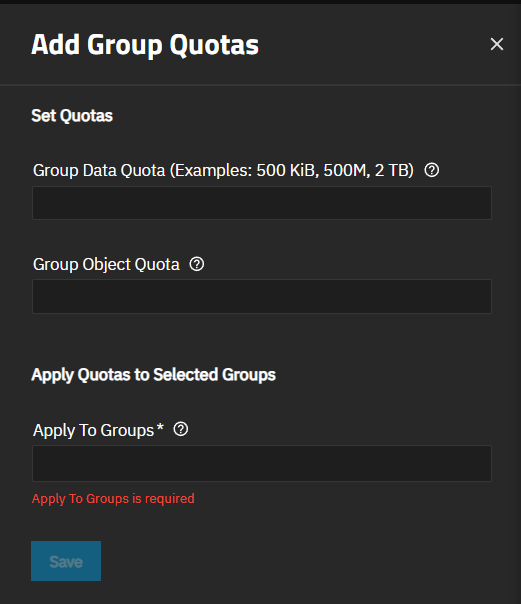
Group Data Quota is the amount of disk space that the selected group can use. Group Object Quota is the number of objects the selected group can own.
Enter the amount of space you want to allocate to the group. Include the unit such as KiB, TiB, etc along with the number value. Not entering the unit defaults to bytes.
(Optional) Enter the number of objects the group can own, per entered group, in Group Object Quota or leave this empty or set to 0 to allow unlimited objects.
Click in the Apply to Groups field to see a list of system groups, including any groups for users from a directory server that is properly connected to TrueNAS. Begin typing a name to filter all groups on the system to find the desired group, then click on the group to add the name. Add additional groups by repeating the same process. A warning dialog opens if no matches are found.
Click Save.
To edit individual group quotas, click on the Edit icon for a group name to open the Edit Group Quota screen where you can edit the Group Data Quota and Group Object Quota values. The group name setting is not editable in a saved quota.