




TrueNAS Development Documentation
This content follows experimental development changes in TrueNAS 28, a future version of TrueNAS.
Use the Product and Version selectors above to view content specific to a stable software release.
Encryption Screen
6 minute read.
The Datasets screen shows the Encryption card after selecting a datasets, root, non-root parent, and child, or zvols with encryption.
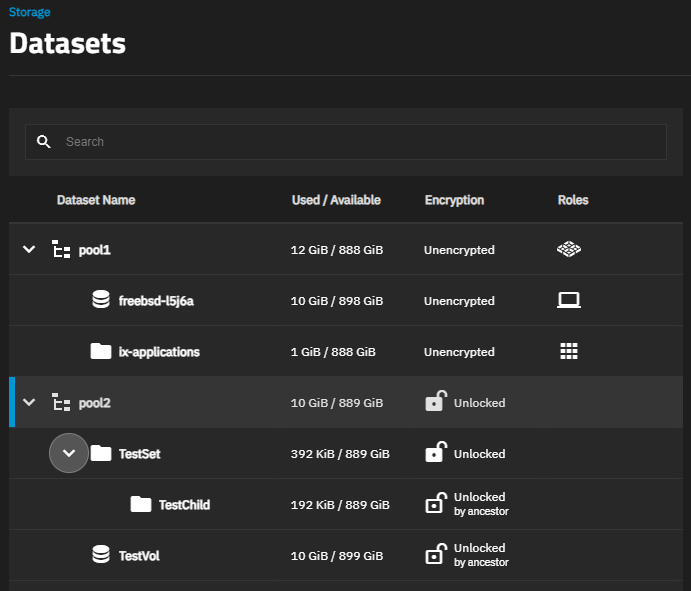
The Datasets tree table includes lock icons and descriptions that indicate the encryption state of datasets.
| Icon | State | Description |
|---|---|---|
 | Locked | Displays for locked encrypted root, non-root parent and child datasets. |
 | Unlocked | Displays for unlocked encrypted root, non-root parent and child datasets. |
 | Locked by ancestor | Displays for locked datasets that inherit encryption properties from the parent. |
 | Unlocked by ancestor | Displays for unlocked datasets that inherit encryption properties from the parent. |
Edit on the Encryption card opens the Edit Encryption Options for dataset namne window.
Lock or Unlck conditionally show on the Encryption card. Key-encrypted datasets or zvols cannot be locked or unlocked.
Export Key options shows on the Encryption card. when the selected dataset is key-encypted.
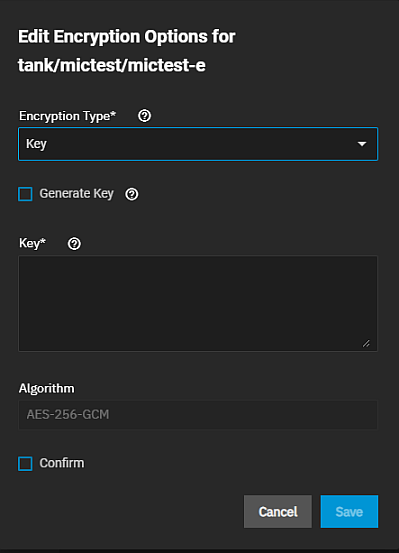
The Edit Encryption Options for dataset name window shows the same encryption settings found on the Add Dataset > Advanced Options screen. It allows changing the type of encryption applied to the dataset, changing the encryption key or passphrase. The type of encryption and the options are set for a dataset when it is created or are inherited from the root dataset.
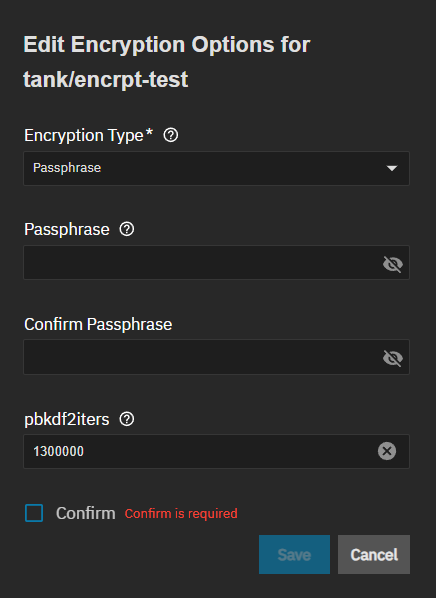
The Edit Encryption Options for dataset name window for encrypted child datasts or zvols shows only the Inherit encryption properties from the parent and Confirm options.
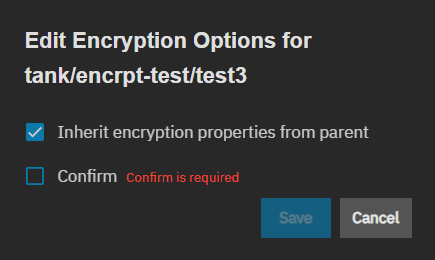
Inherit encryption properties from parent shows on the Edit Encryption Options for dataset name window when the dataset or zvol is a child of an encrypted parent dataset. It allows changing the encryption authentication key or passphrase for the child datasets or zvol, but you cannot change the type of encryption applied. Disabling it shows the current encryption type and settings for the parent dataset. Leaving it enabled retains the encrytpion settings of the parent.
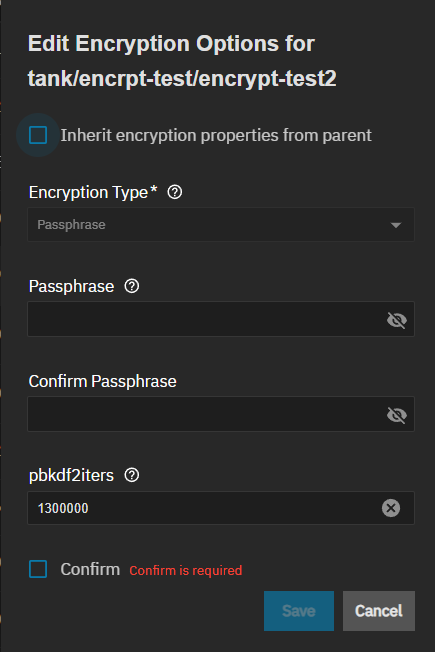
Confirm is required and activates the Save button.
For more information on dataset encryption, see the Encrypting Datasets.
The Encryption card for root datasets (pools) with encryption includes the Export All Keys and Export Key options, but it does not include the Lock option.
If a dataset is encrypted using a key, the Encryption card for that dataset includes the Export Key option.
All child datasets or zvols inherit the encryption of the parent dataset.
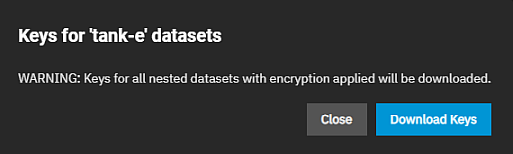
Export All Keys opens a confirmation dialog with the Download Keys option that exports a JSON file of all encryption keys to the system download folder.
Export Key opens a dialog showing the key for the selected dataset and the Download Key button. Download Key exports the key to a JSON file and saves it in your system download folder.
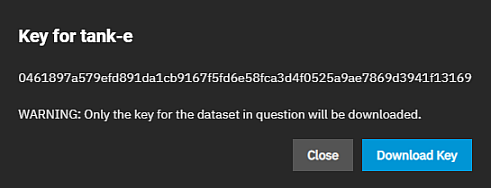
The Lock button does not show for key-encrypted datasets.
Lock shows on the Encryption card for passphrase-encrypted datasets. It does not show for an encrypted child that inherits encryption from an encrypted parent when the lock state is controlled by the parent dataset for that child dataset. The locked icon for child datasets that inherit encryption is the locked-by-ancestor icon.
Lock opens the Lock Dataset confirmation dialog with the option to Force unmount and Lock the dataset.
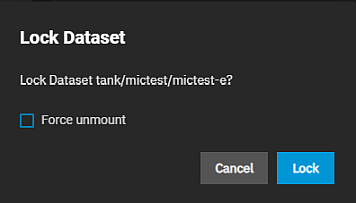
Force unmount disconnects any client system accessing the dataset via the sharing protocol. Do not select this option unless you are certain the dataset is not used or accessed by a share, application, or other system services.
After locking a dataset, the Encryption screen shows Locked as the Current State and adds the Unlock option.
Unlock on the Encryption card shows for locked datasets that are not child datasets that inherit encryption from the parent dataset. Unlock opens the Unlock Datasets screen.
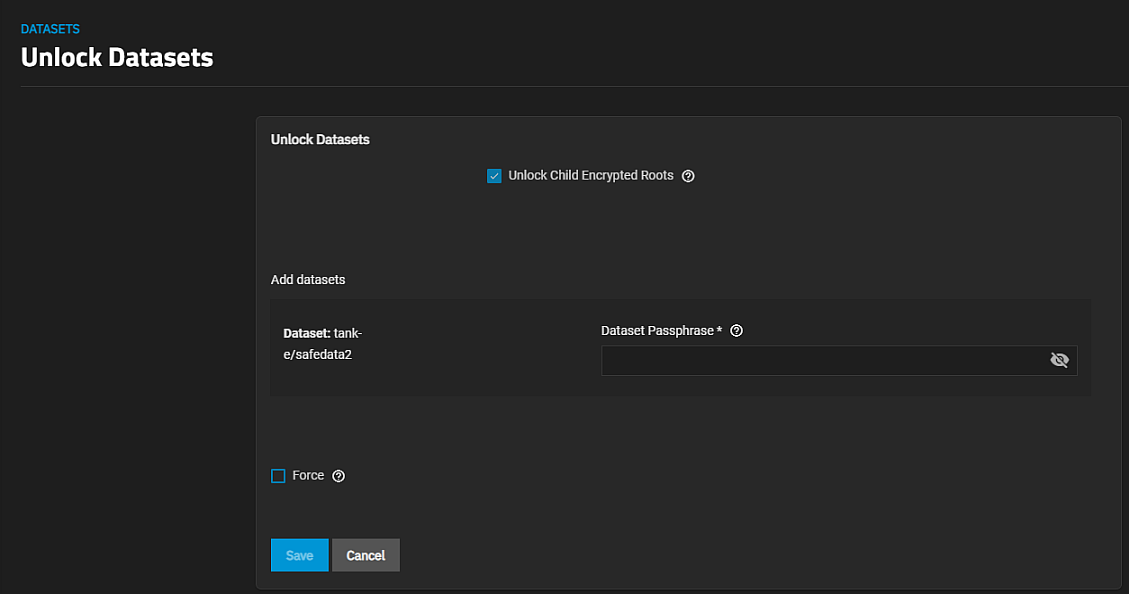
Unlocking encrypted datasets shows two additional dialogs: Unlock Datasets and Unlocked Datasets.
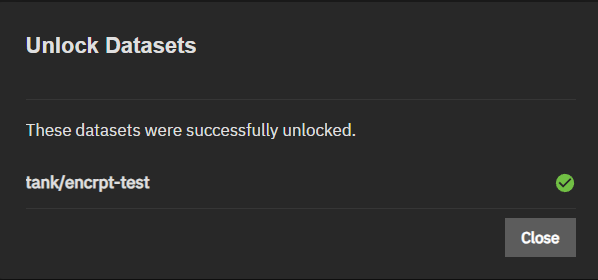
Continue on the Unlock Datasets dialog starts the unlocking process, fetches data and opens the Unlock Datasets dialog.
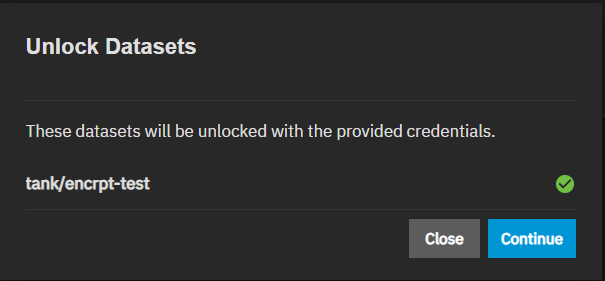
When the locked dataset has child datasets, both are unlocked at the same time and show on the Unlocked Datasets dialog.
The Unlocked Datasets dialog opens after clicking Continue on the Unlock Datasets dialog and shows the status of unlocked datasets and the mount path to the datasets.
The Encryption options on the Pool Creation Wizard > General screen set encryption for the entire pool, and when equipped with SEDs, can set the global SED encryption password.
Encrypting the root dataset (pool-level encryption) creates a single point of failure. Losing one key makes the entire pool inaccessible.
Best practice Do not enable encryption during pool creation. Instead, create an unencrypted pool with individually encrypted datasets and zvols. This allows independent key management, selective unlock, isolated failures, and simplified recovery.
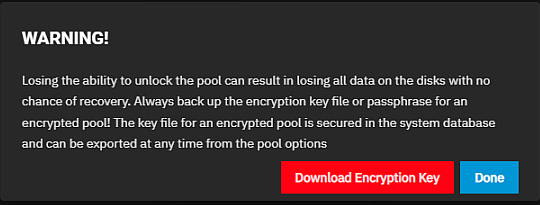
The Download Encryption Key warning window opens after saving a new pool as part of the pool creatiing process. It downloads a JSON file to your system.