




TrueNAS Development Documentation
This content follows experimental development changes in TrueNAS 28, a future version of TrueNAS.
Use the Product and Version selectors above to view content specific to a stable software release.
Users Screens
13 minute read.
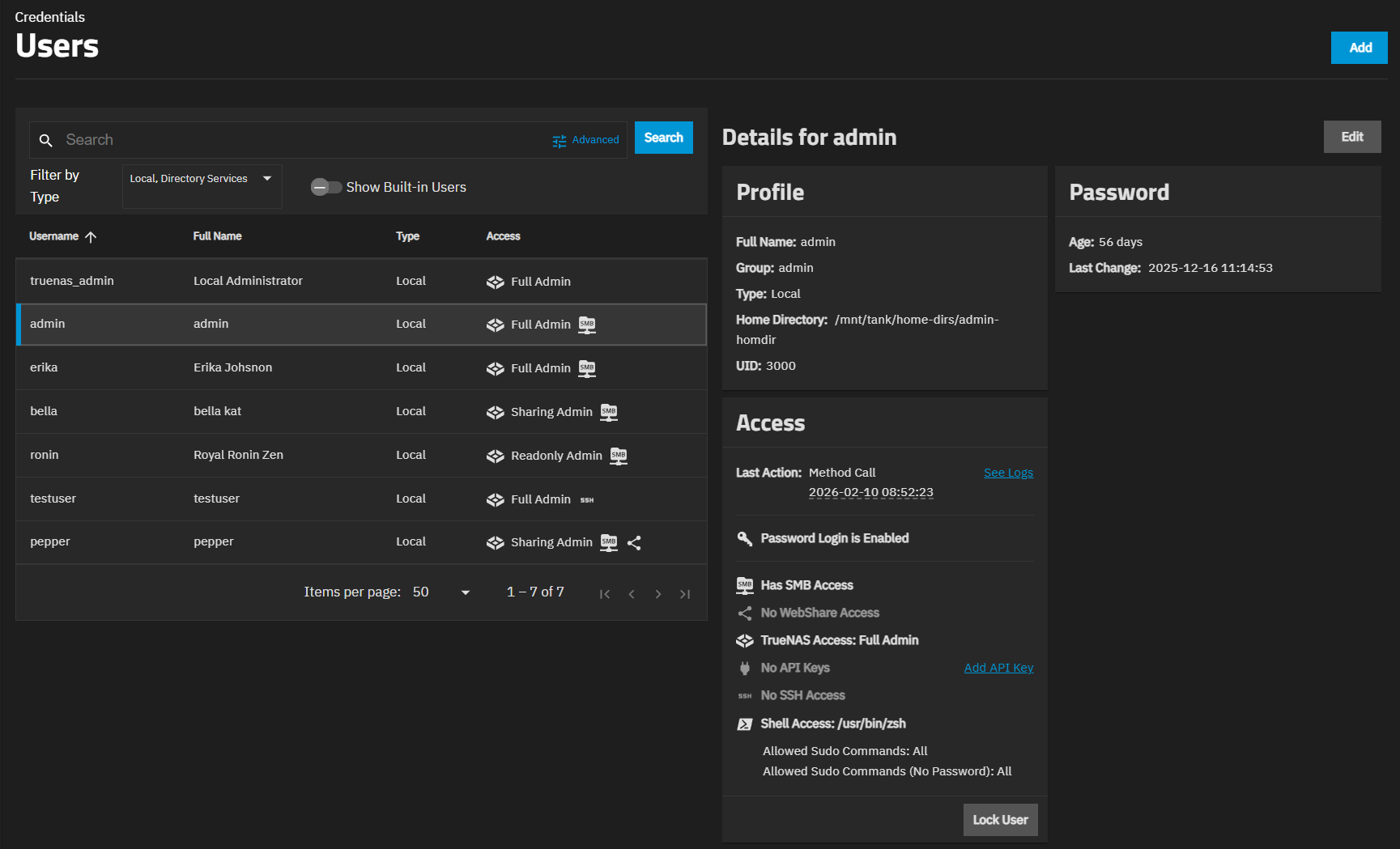
The Credentials > Users screen shows a table with all users created on the system. A set of cards shows for the selected user row (the first row is selected by default). The truenas_admin user is the first user row, and it therefore shows by default when you first access the screen.
Add opens the Add User screen.
Edit opens the Edit user screen for the selected or default user row.
Delete opens the Delete User dialog for the selected user.
The Users screen search is set to the basic, or simple search option by default. It accepts any word entered, such as a username, user type, or role.

Switch to Advanced link shows in the search field when in basic search mode.
Switch to Advanced shows advanced search options, an advanced search syntax example in the search field, and several Add Filter buttons directly below the search field for common search options. The users table shows all users in the system.

Switch to Basic option shows in the search field when in advanced search mode. Switch to Basic returns to the basic user table view.
The Users screen user table shows the Username, Full Name, Type, and pre-defined administrator role assigned to the user (Access) for each user. Username, Full Name, and Type sort the list in ascending or descending order. Each user row also shows an icon showing the level of access given to the user.
| Icon | Description |
|---|---|
 | Indicates the user has TrueNAS Access. |
 | Indicates the user has SMB access. |
| Indicates the user has WebShare access. | |
| Indicates the user has an API key. | |
| Indicates the user has SSH access. |
By default, only local users show in the user table. The Filter by Type dropdown list has three options to show all users in the system:
- Built-in - Shows all built-in users.
- Local - Shows all users added by an administrator account.
- Directory Services - Shows all users added by a directory service like LDAP, FreeIPA, or Active Directory.
Filter by Type allows selecting multiple filter options.
The selected user row shows values for that user in the Details for user cards.
The User screen shows up to three cards for each user based on the type of user:
- Profile - Shows for all user types (local, built-in, directory service created users).
- Password - Shows for users that require access to the UI, SSH, or communication to or with external services or users.
- Access - Shows for all user types.
Edit opens the Edit User screen.
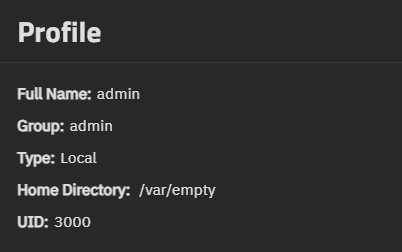
The Profile card shows the full name, group membership, type of user (Local, Built-in, or Directory Service), home directory path, and the user ID.
The Password card shows for users who require credentials to access the UI, an SSH session, or have external communication capabilities (Built-in users). The card shows the password age, which is how long that password has been in use, and the date and time it was last changed.
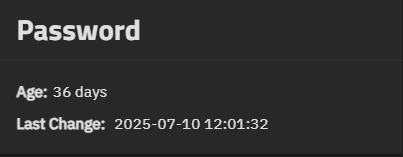
The Password card for the truenas_admin and admin users not currently logged in shows the Generate One-Time Password button. To see this button, the selected user must not be the user currently logged into TrueNAS, must not be a built-in user, and must have TrueNAS Access selected and a role assigned with account write permissions (e.g., the Full Admin role).
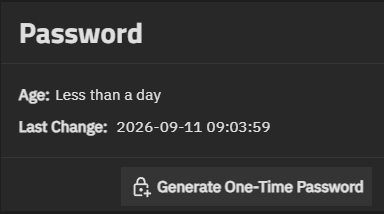
Generate One-Time Password opens the One-Time Password dialog showing a system-generated password for single (one-time) use.
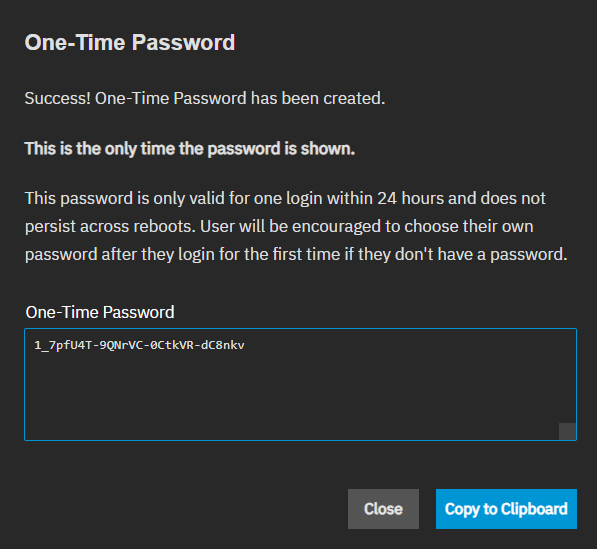
Copy to Clipboard copies the password key to the clipboard so you can paste it into a saved text file for later use when TrueNAS prompts you to enter it.
The Access card has three sections: last action, password status, and any roles, API keys, or access privileges granted to SSH and shell, and shows the Shell settings and access path. When global two-factor authentication is set, it shows the Clear Two-Factor Authentication button.
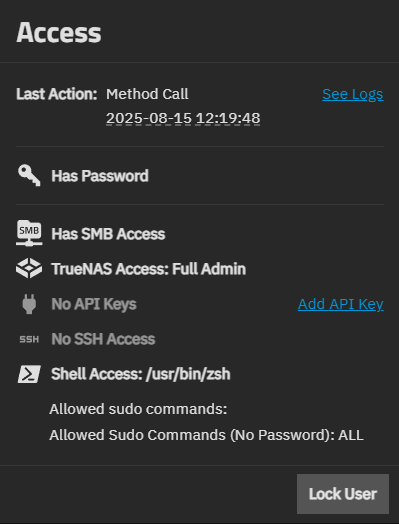
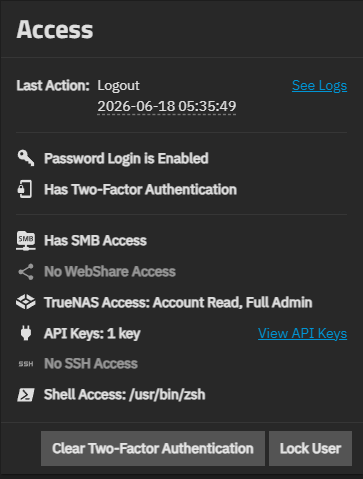
Information details on the Access card:
Last Action can be a method call for the action taken (like opening a log file), log in or log out, or none. It shows the date and time of that last action.
See Logs link opens the Audit screen for the selected user.
Password Login status is Enabled or Disabled. A key icon when the user has a password, or an inactive key icon when the user does not have a password. Users with passwords show the Password card.
Service access, such as SMB Access or WebShare Accesss indicates the user has that access granted.
TrueNAS Access and the role assigned to the user, such as Full Admin, Share Admin, Read Only Admin.
API keys assigned or not. When a key exists, the icon changes and shows a number with the key, for example, 1 key.
- Add API Keys link shows when no key exists, and it opens the Add API Key screen.
- View API Keys link shows when a key exists and opens the User API Key screen.
SSH Access is active or inactive if not granted.
Shell Access path.
Sudo Command Access granted.
- Allowed Sudo Commands setting
- Allowed Sudo Commands (No Password) setting
The following table legend shows the icons found on the Access card:
| Icon | Description |
|---|---|
| Indicates user has a password. | |
 | Indicates the user has TrueNAS Access. |
| Indicates the user has SMB access. |
| Indicates the user has WebShare access. | |
| Indicates the user has an API key. | |
| Indicates the user has SSH access. | |
| Indicates the user has shell access. |
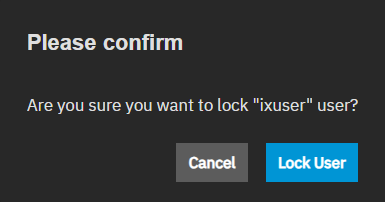
Lock User opens a confirmation dialog before locking the user. A locked user is prevented from logging in or using password-based services while locked. This button toggles to Unlock User, which shows a confirmation dialog before unlocking the user.
Clear Two-Factor Authentication shows when the user has 2FA configured. Opens a confirmation dialog before clearing the two-factor authentication settings for the user. This administrative function helps users who have lost access to their authenticator device or are experiencing 2FA-related login issues. When cleared, the user can log in without 2FA. If Global 2FA is enabled, the user is prompted to reconfigure 2FA on their next login.
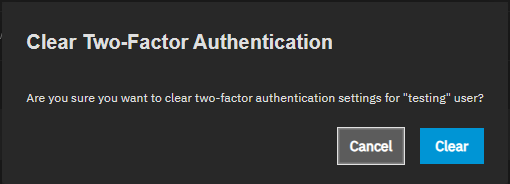
Only clear 2FA for a user when it is necessary, such as when the user has lost access to their authenticator device. This action temporarily reduces account security until 2FA is reconfigured.
The Delete User dialog shows the name of the user selected in the user table on the Users screen.
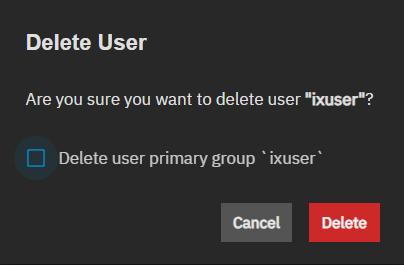
Deleted user primary group name removes the primary group created for the user (of the same name as the username) from TrueNAS.
Delete removes the user profile from TrueNAS and the primary group if the option is selected.
The Add User and Edit User configuration screens show the same setting options, but a few options are not editable. Built-in users (except the root user) do not show the home directory settings, but all new users created and the SMB share smbguest user do.
The Username and Allow Access settings specify the username and level of access (privileges granted) given to the user. Each access option changes the settings shown in other sections of the Add User and Edit User screens.
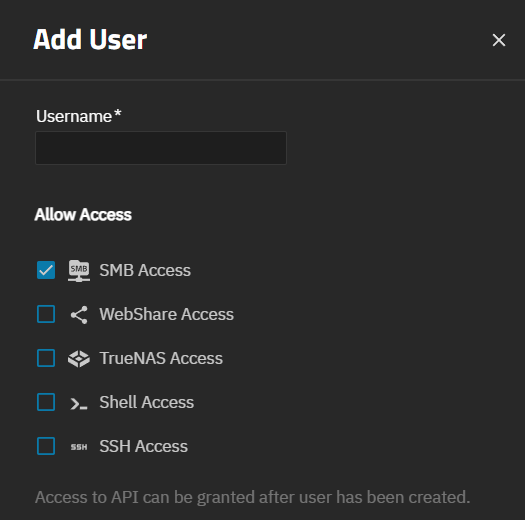
| Setting | Description |
|---|---|
| Username | Specifies the required name for the user. A user name consists of up to 32 characters. When using NIS or other legacy software with limited user name lengths, keep names to eight characters or less for compatibility. Names should not begin with a hyphen (-), include a space, tab, or these special characters: comma (,), plus (+), ampersand (&), percent (%), carat (^), open or close parentheses ( ), exclamation mark (!), at symbol (@), tilde (~), question mark (?), greater-than or less-than symbols (<)(>), or equal (=). |
| Allow Access | Specifies the access granted to the user account. Each option shows different settings. Access options are:
|
| Select Role | Sets the privilege level for the user to one of the predefined user roles (Full Admin, Sharing Admin, or Readonly Admin). Shows after selecting TrueNAS Access. Each role adds the appropriate group to the Groups option under Additional Details. |
Authentication settings show after selecting Shell Access or SSH Access options under Allow Access. Password shows for all access options.
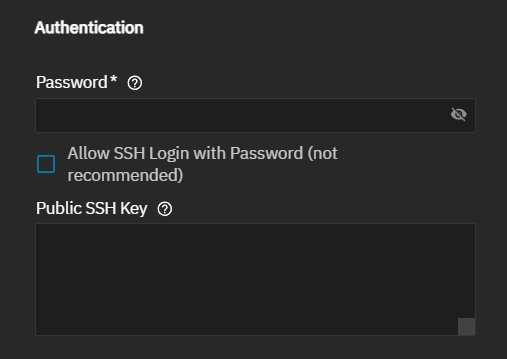
| Setting | Description |
|---|---|
| Password | (Required) Text entry field for the password or passphrase the user enters when logging into the UI or an SSH session. A password cannot contain a question mark (?). |
| Disable Password | Disables password-based authentication for the user account. When selected, TrueNAS removes the existing password and hides the Password card. Users with disabled passwords cannot access password-based services like SMB shares or SSH password authentication. This option is not available (grayed out) when SMB Access is selected. |
| Public SSH Key | Only shows after selecting SSH Access. Text entry field that accepts manual or copy/paste entry of the public SSH key for any key-based authentication. Do not paste the private key in this field! |
The edit icon or the field shows a text entry, dropdown list, or other setting fields. Some settings show additional settings, for example, the Group, Home Directory, and Sudo Commands.
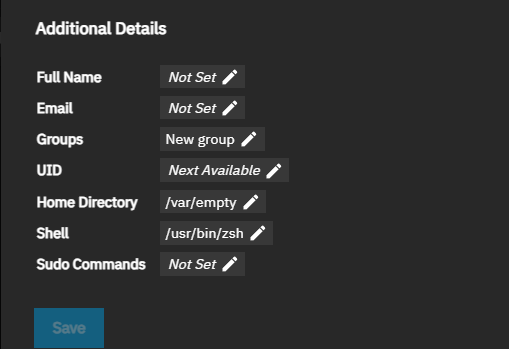
| Setting | Description |
|---|---|
| Full Name | Specifies the full name (first and last) for the user. |
| Specifies the email address of the new user. This email address receives notifications, alerts, and messages based on configured settings. | |
| Groups | Sets the group membership for the user. Shows the Create New Primary Group pre-selected by default, and Auxiliary Groups settings after clicking the edit icon. Shows Create New Primary Group with the same name entered in Username. Disabling Create New Primary Group shows the Primary Group dropdown list with group options. |
| Create New Primary Group | Sets TrueNAS to automatically create a new primary group for the user named the same as the username. Selected by default. Shows after clicking in the Group field. Disabling shows the Primary Group setting. |
| Primary Group | Sets the name of the primary group for the user from the options on the dropdown list. Shows after clicking in the Group field and disabling Create New Primary Group. |
| Auxiliary Groups | Sets membership in the selected auxiliary group. Shows after clicking in the Groups field. For example, to add built-in administrator or truenas_readonly_administrator group privileges. |
| UID | Shows the default Next Available. Shows a text entry field that accepts manual entry of a new number for the user ID after clicking edit. Enter a number greater than 1000 for user accounts. System accounts use an ID equal to the default port number used by the service. |
| Home Directory | Sets the home directory for the user. Shows the default New directory under /var/empty when not configured. Shows Create Home Directory preselected by default, and the Create Home Directory Under mount path and file browser fields show after clicking edit. D Disabling Default Permissions shows the . |
| Shell | Select the shell for local and SSH logins from the dropdown list. Options are bash dash, rbash, sh, tmux, TrueNAS CLI, TrueNAS Console, and zsh. |
| Create Home Directory | Sets the mount path for the home directory for the selected user. Selected by default. Disabling hides the Default Permissions option, and Create Home Directory changes the mount path and browser fields to Home Directory. |
| Home Directory | Sets the mount path to the location for the home directory. Shows a pair of fields: a blank mount path field and a file browser directly under the blank field. The blank field allows typing the mount path or using the file browser to set the mount path. The file browser allows creating a new dataset after clicking on an existing dataset. If the directory exists and matches the value in Username, it is set as the home directory for the user. When the path does not end with a subdirectory matching the username, a new subdirectory is created if the Create Home Directory option is selected. |
| Default Permissions | sets the home directory ACL permissions to 700 or owner - all, others-none. Enabled by default. Disable to show the Home Directory Permissions permission options. |
| Home Directory Permissions | Sets custom home directory permissions using the Read/Write/Execute and User/Group/Other checkboxes. |
| Sudo Commands | Shows options for entering sudo commands. Options are:
|
| Allowed Sudo Commands | Limits this user to the specific sudo commands entered in the field. Enter allowed commands as an absolute path to the ELF (Executable and Linkable Format) executable file, for example, /usr/bin/nano. |
| Allow all sudo commands | Grants the user permission to use all sudo commands, but prompts the user to enter their password. |
| Allowed sudo commands with no password | Limits the sudo commands the user can enter without seeing a prompt to enter their password. Enter each command as an absolute path to the ELF (Executable and Linkable Format) executable file, for example, /usr/bin/nano. sudo commands without password prompts. We recommend limiting this privilege to trusted users and specific commands to minimize security risks. |
| Allow all sudo commands with no password | Gives this user administrator permissions and the ability to use all sudo commands without seeing a prompt to enter their password. This is not recommended! |